
Everything about paddling with the club. In one app.
RSVP to practice, see your seat in the canoe, chat with the team, and borrow the club OC1 or OC2, all from your phone. It replaces TeamSnap and the old canoe checkout app, and it was built just for Capital Outrigger.
Up and running in three steps
Takes about two minutes. Use the email the club has on file for you.
Put it on your home screen
- iPhone: open the app's link, tap Share (in newer iOS it's in the menu next to the address), then View More, Add to Home Screen, and Add.
- Android: open the link in Chrome, tap the menu (⋮), then Add to Home screen or Install app.
Sign in with a code
Open the app from its new icon. Type your email and tap Email me a sign-in code. Enter the code from the email and tap Sign in. You stay signed in.
It's fine to leave the app to check your email: when you come back, the code box is waiting.
Turn on notifications
Tap Turn on on the banner and allow notifications, so you hear about new events, cancellations, lineups, and messages.
On iPhone, notifications only work from the home-screen icon, so step 1 matters.
No code? Check spam, and use the newest email if you asked more than once. Only people on the club roster get a code, so if nothing arrives, ask an admin to check your email on the roster.
See it in action
Short tours with captions. Everyone on screen is made up: no real members' details are shown.
Tour for members
About 6 minutes. Signing in, home screen setup, the schedule, RSVPs, chats, the roster, canoe checkout, and your settings.
Tour for coaches and admins
About 5 minutes. Adding and uploading events, availability, lineups, emailing members, invites, and the Admin screens.
What you can do as a member
The bar at the bottom has five tabs: Home, Schedule, Roster, Messages, and More. Here's what's in each.
Answer Going, Maybe, or No in one tap
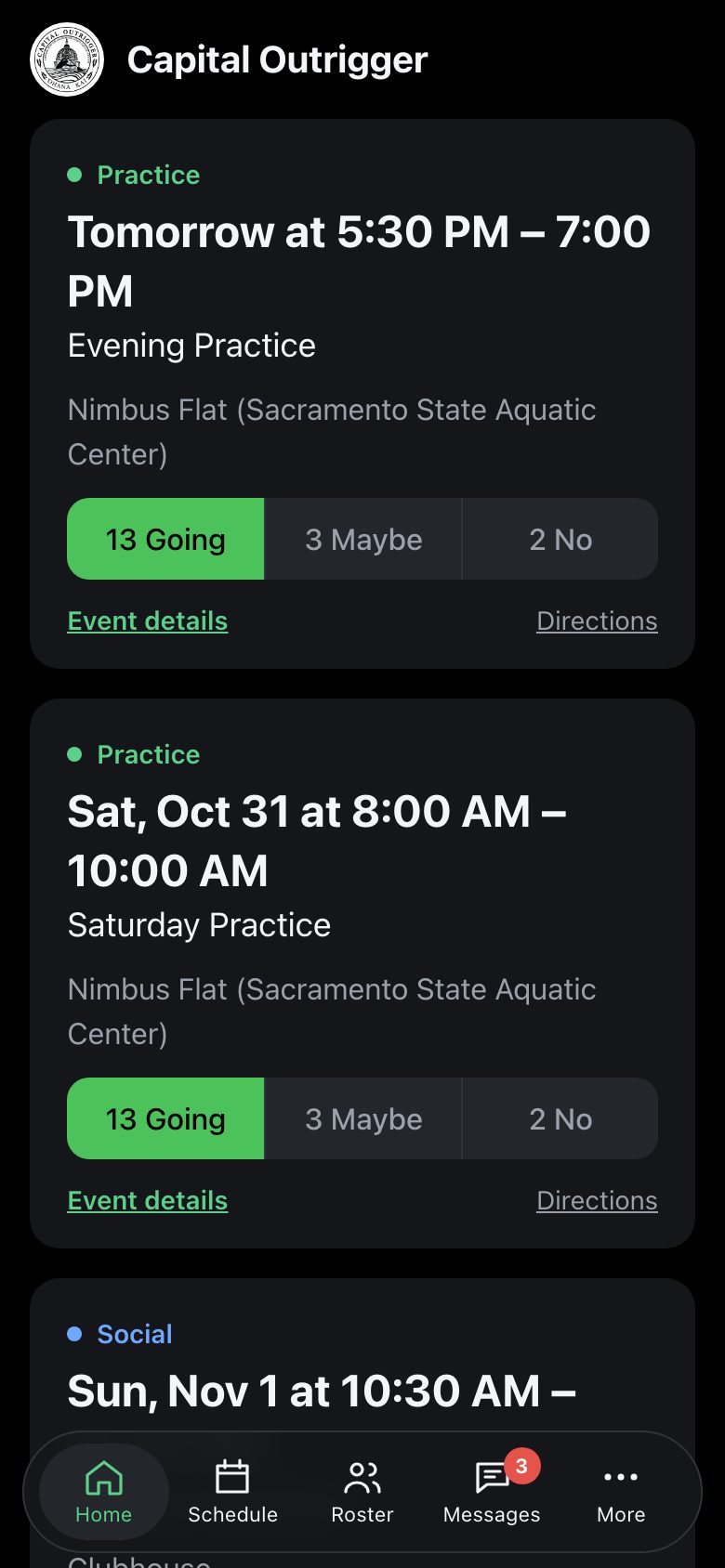
- Home shows your next six events with Going, Maybe, and No buttons and the counts so far.
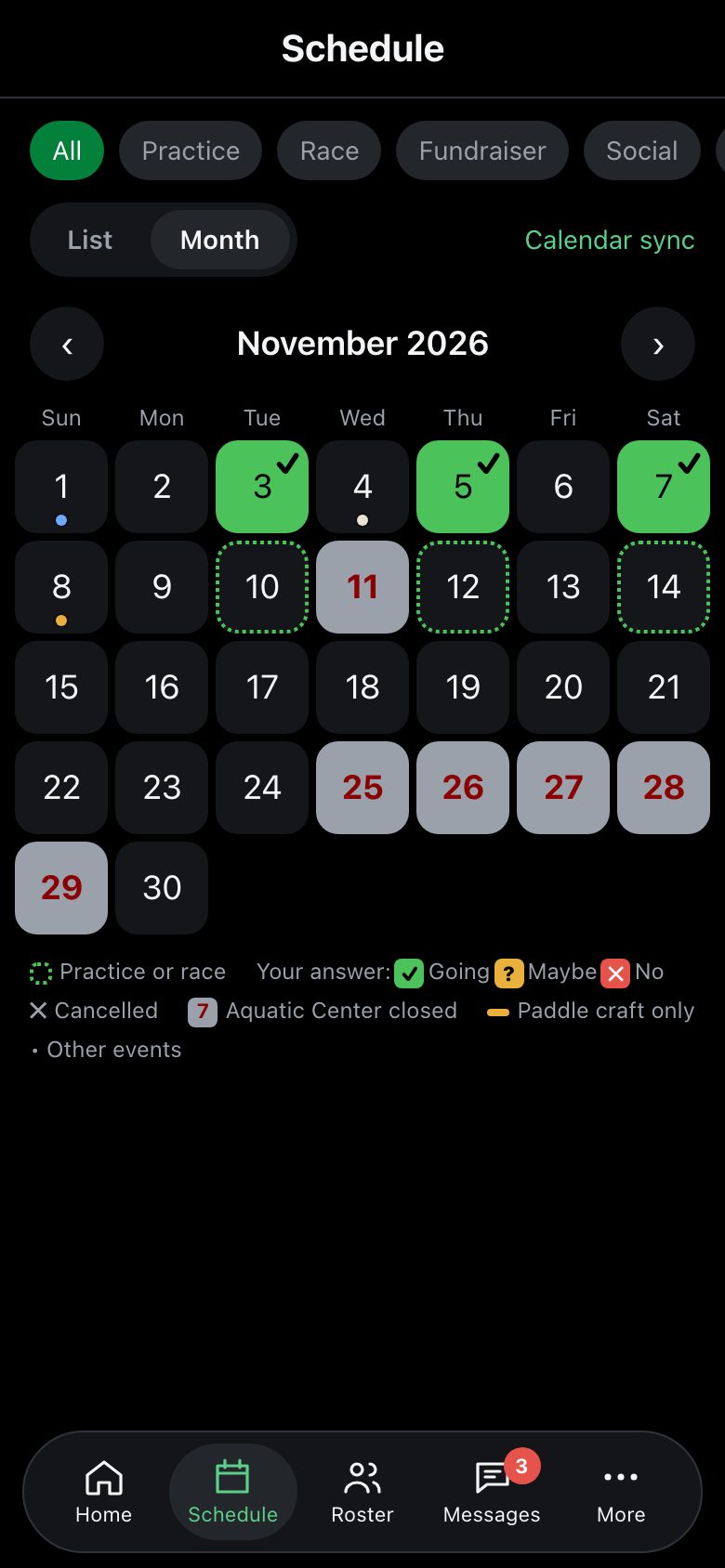
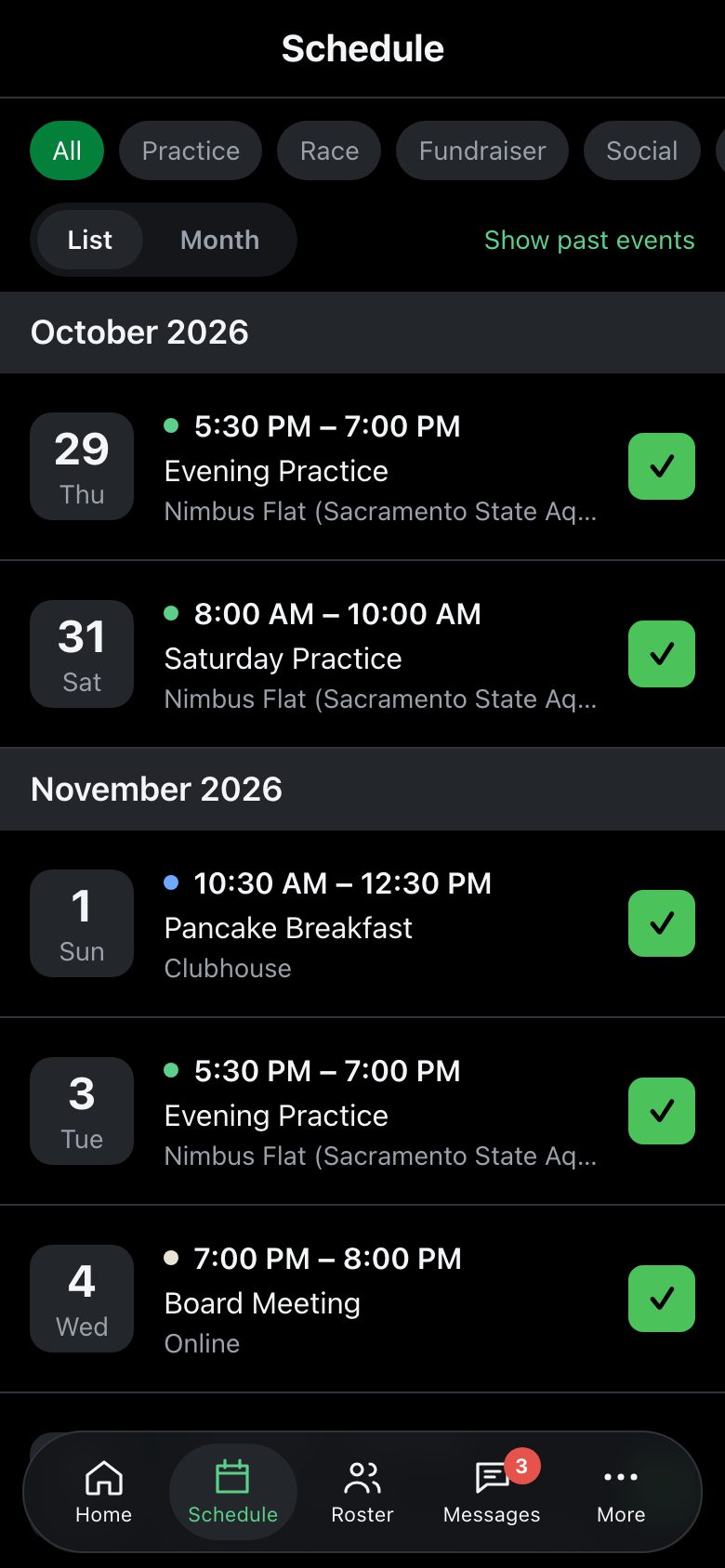
- Schedule lists every event by month. Chips show just practices, races, socials, and more.
- The box on each row is your answer (green ✓, yellow ?, red ✕). Tap it to answer right from the list.
- Month view fills each practice and race day with your answer. Swipe to change months.
- Days the Aquatic Center is closed or paddle craft only show right on the schedule.
Everything about an event in one place
- Details: time, place with directions, notes, and Add to calendar.
- Bring guests to social events. The headcount includes them.
- Spots and waitlists: see how many spots are left. If it fills, you're on the waitlist in sign-up order.
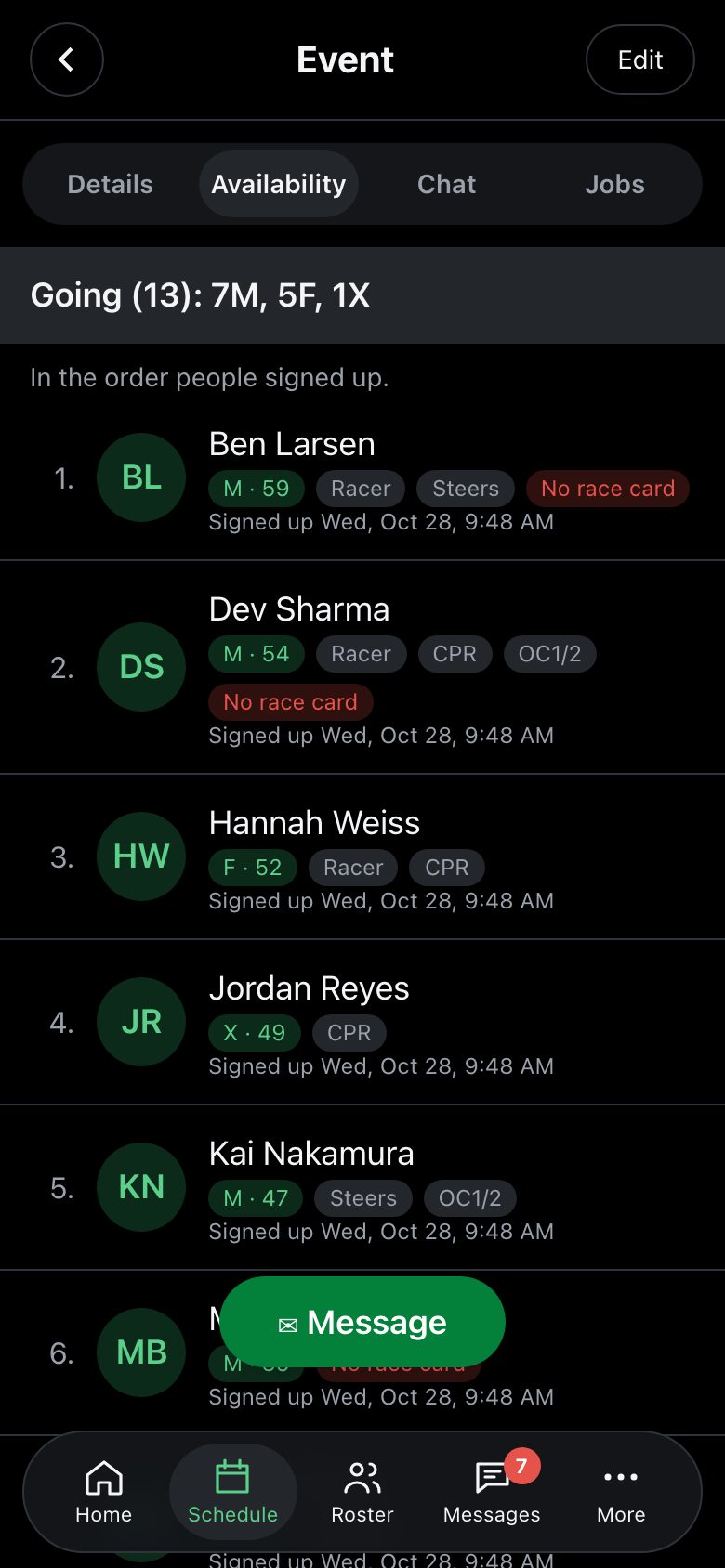
- Availability: who's going, with mixed-crew counts like "7M, 5F, 1X". Send a quick note to everyone going.
- Jobs: sign up to drive a trailer, load canoes, or flip pancakes.
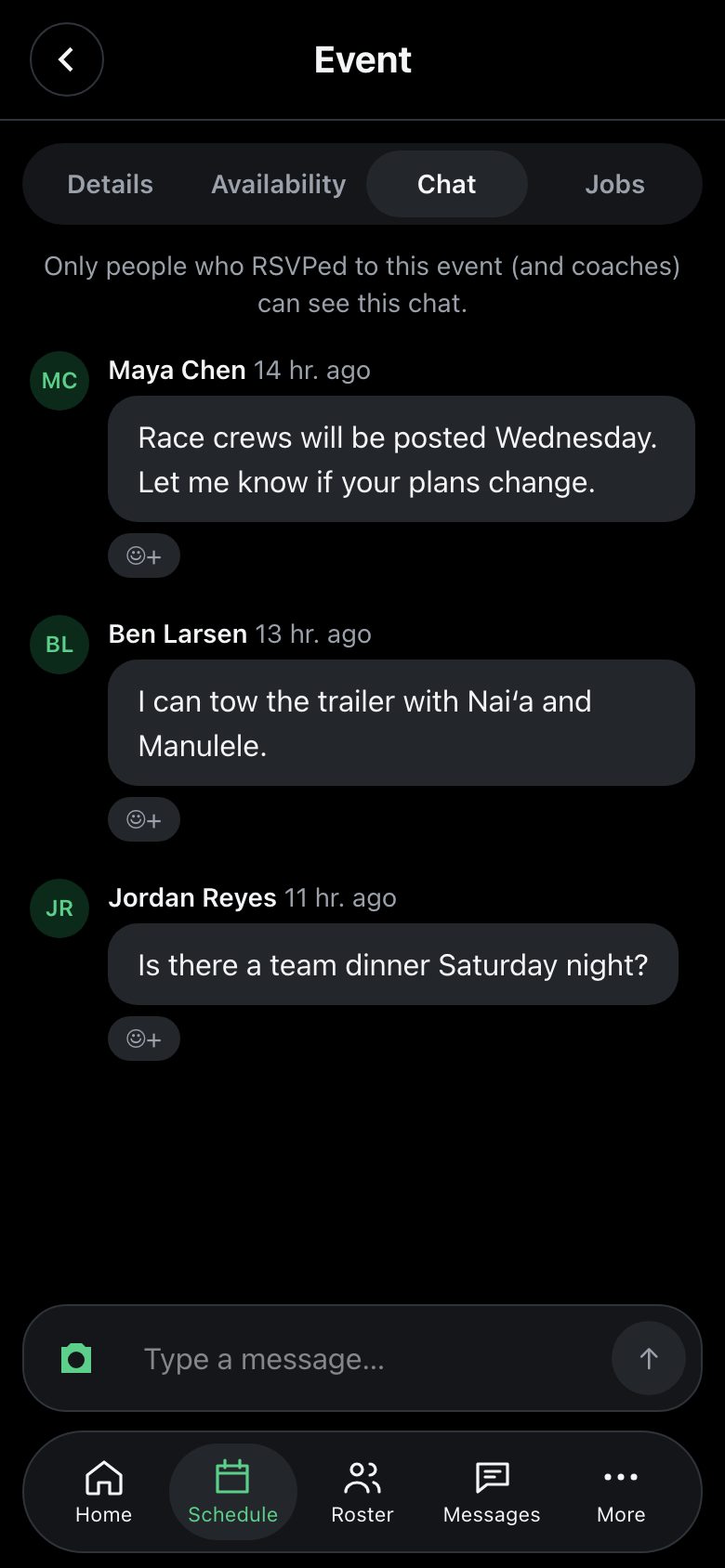
- Chat: each event has its own chat for the people coming.
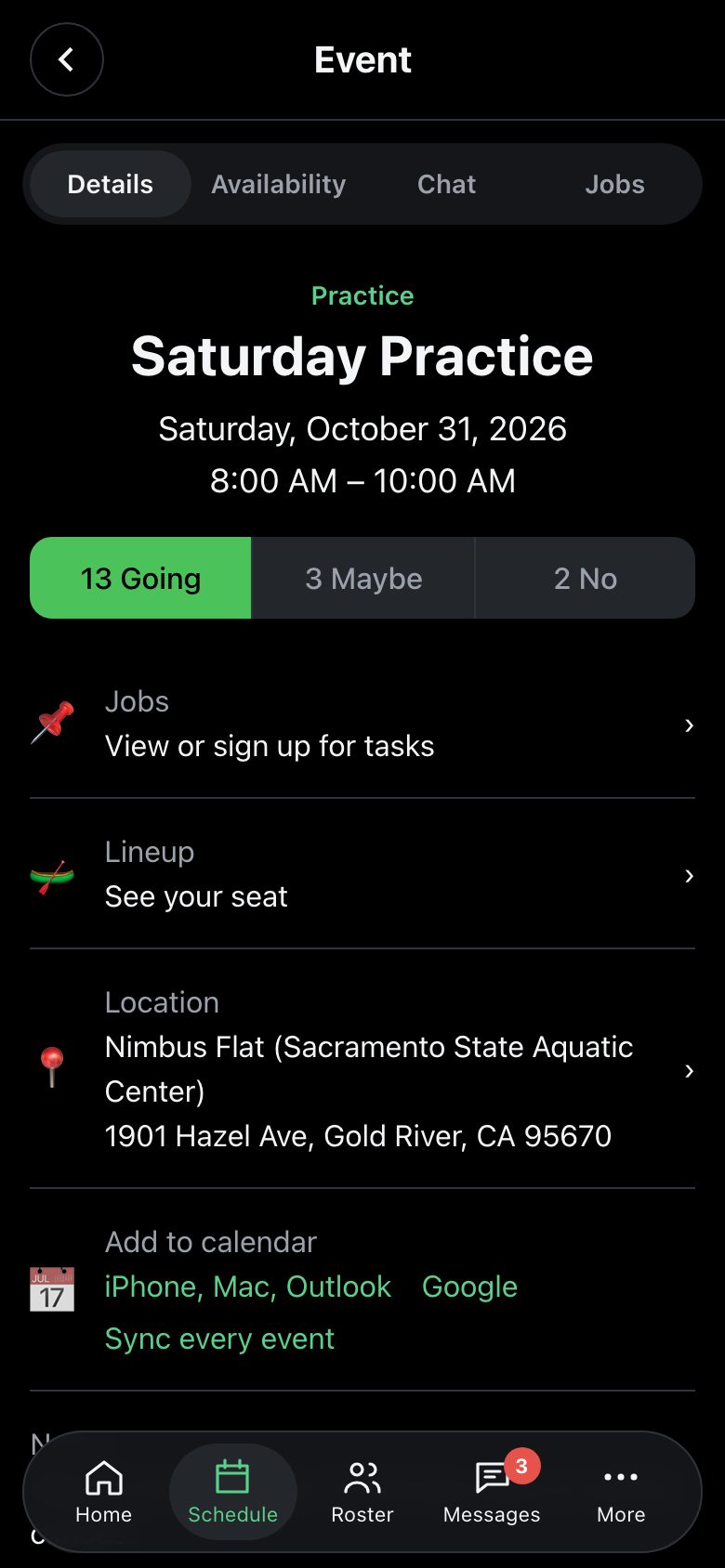
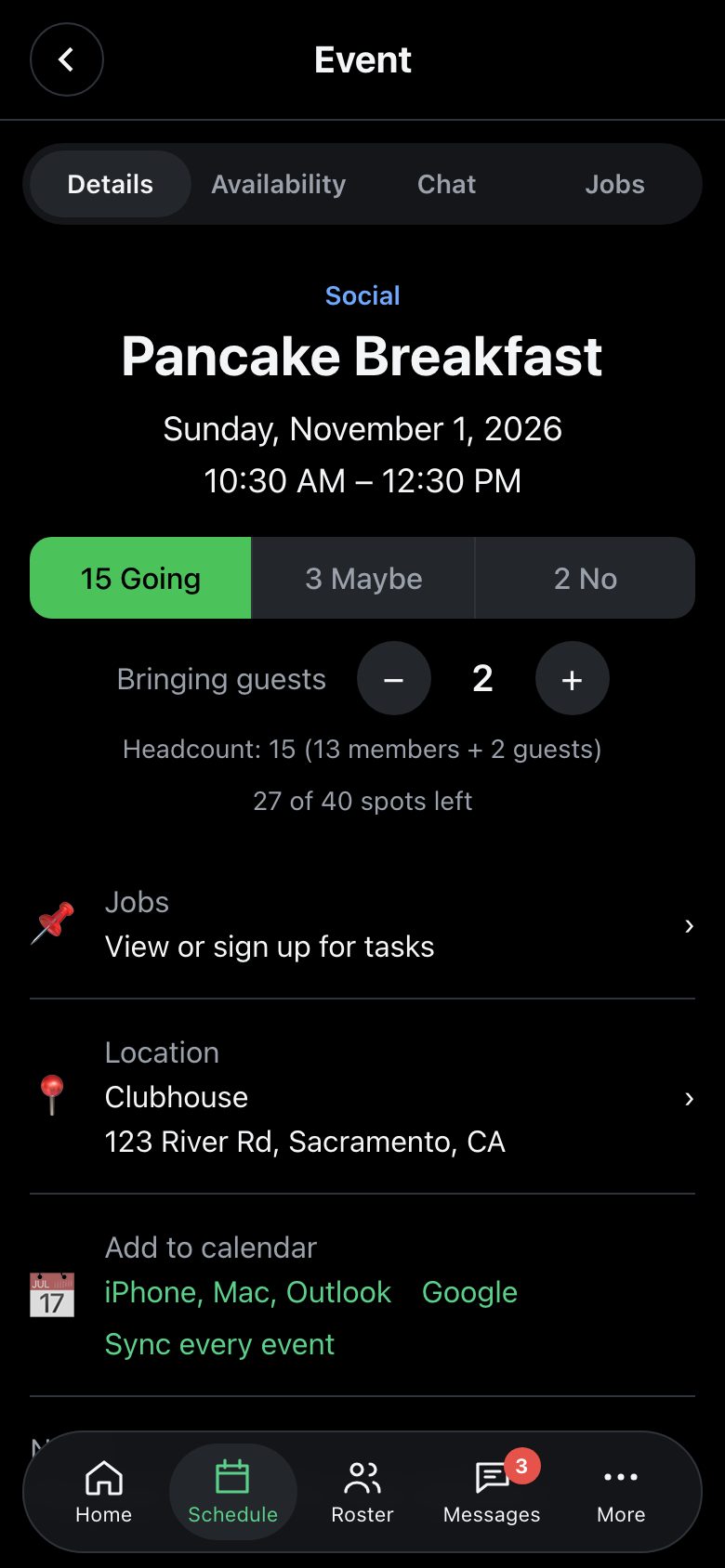
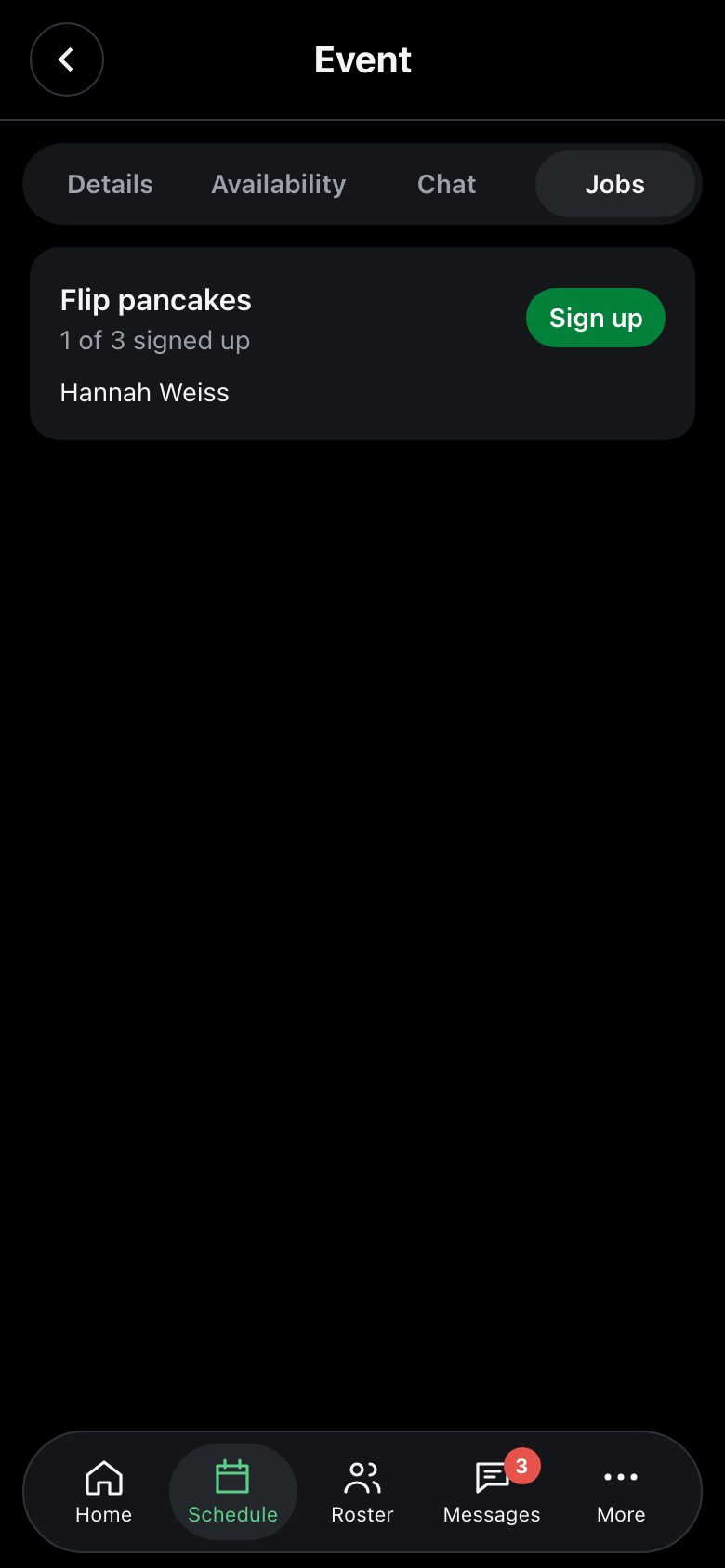
Know your canoe and seat before you get to the lake
- When a coach publishes the lineup, you get a notification with your seat.
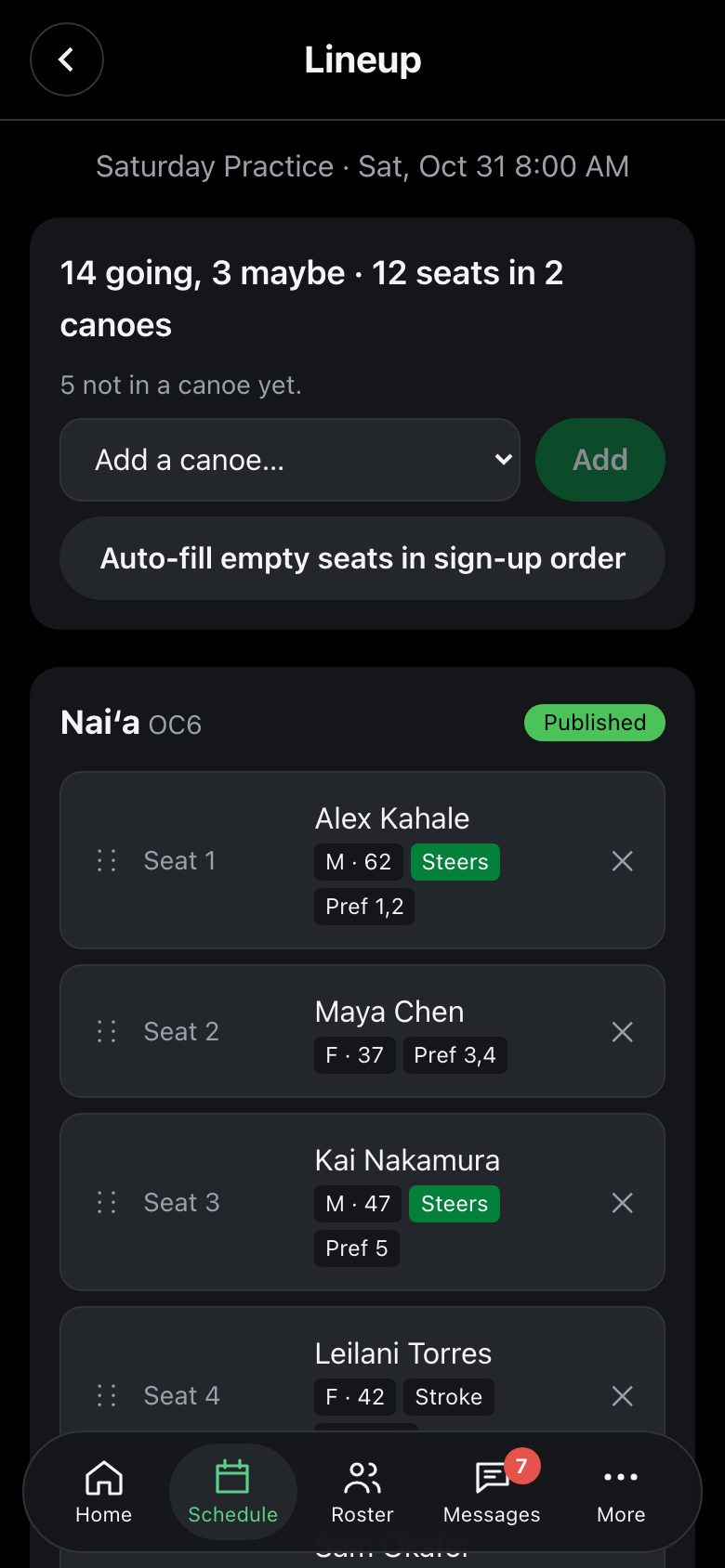
- Open the event and tap Lineup: "You're in Naiʻa, seat 4", with your seat highlighted.
- See who else is in your canoe.
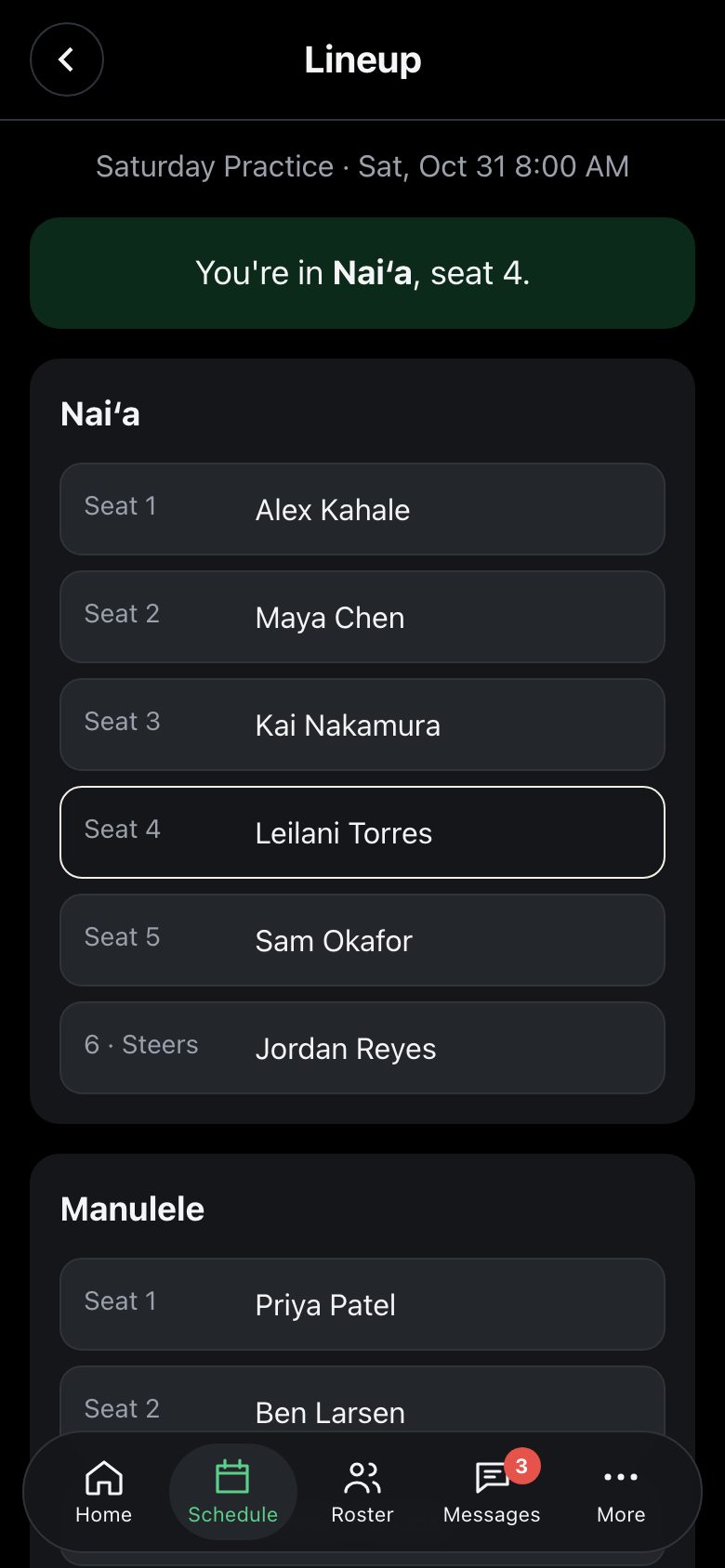
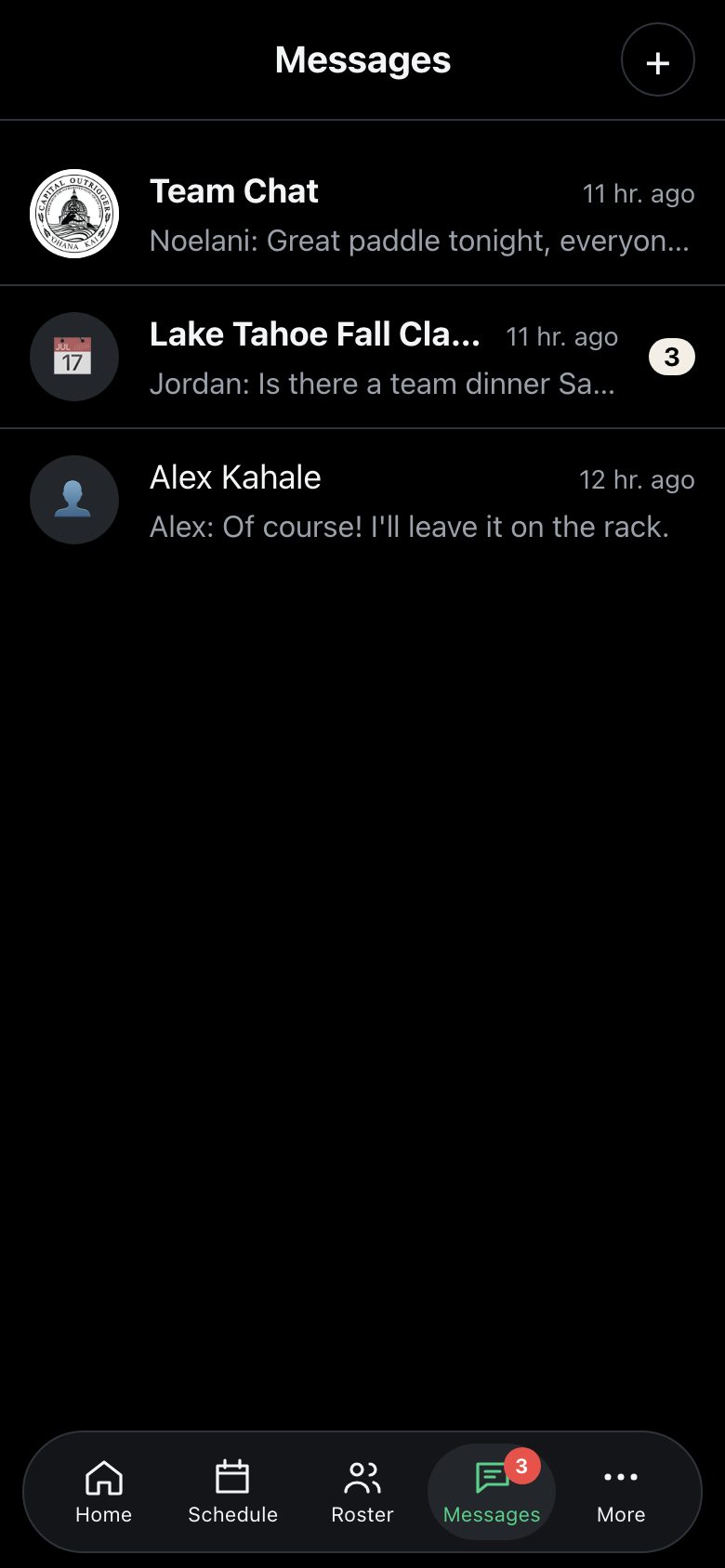
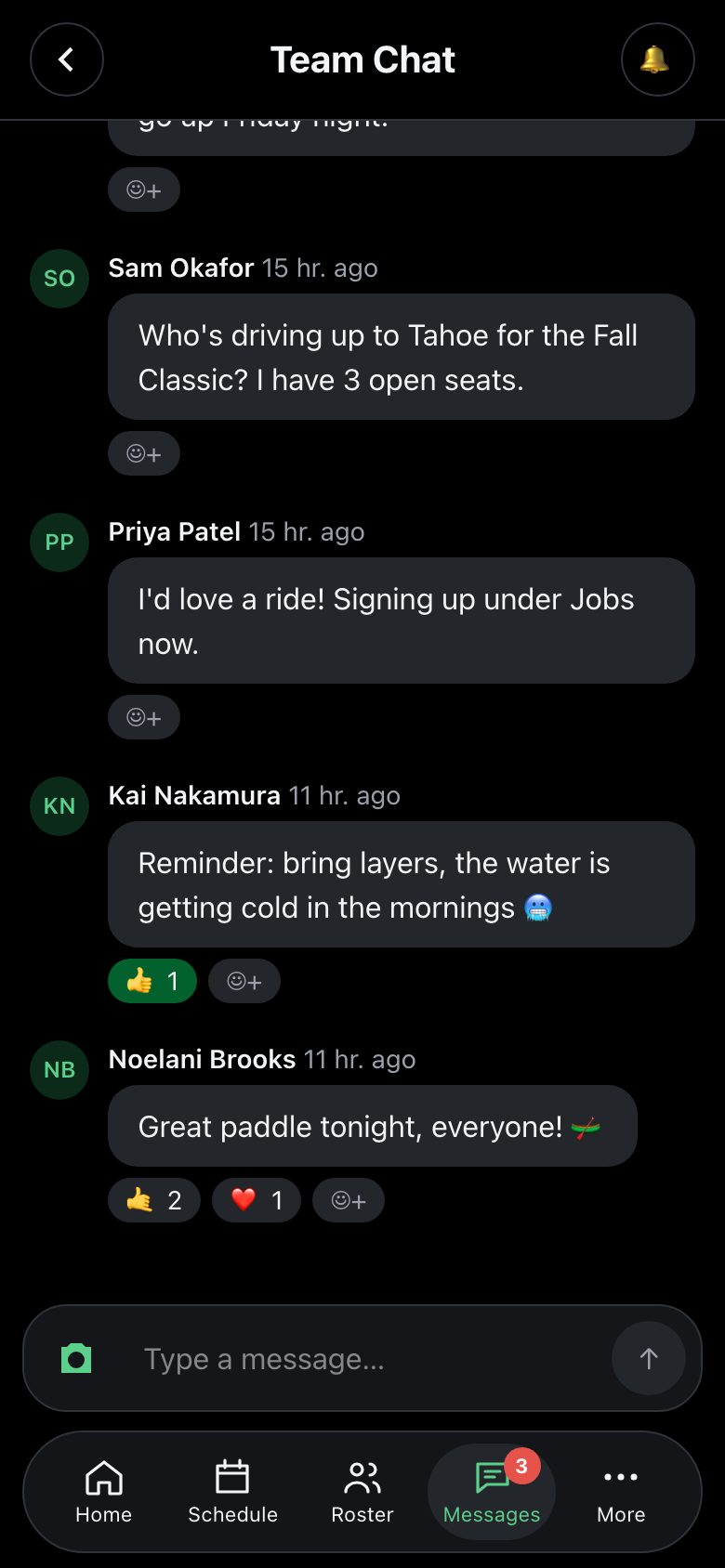
Team Chat, event chats, and direct messages
- Team Chat includes every member and always stays at the top.
- Start a direct or group chat with +, or tap Message on anyone's profile.
- Send photos. React with any emoji, and press and hold a reaction to see who left it.
- Edit or delete your own messages. Report one that crosses a line.
- Mute a chat, or swipe it left to archive it. It comes back when someone posts.
- A red number on the Messages tab and the app icon counts unread messages.
Find your teammates
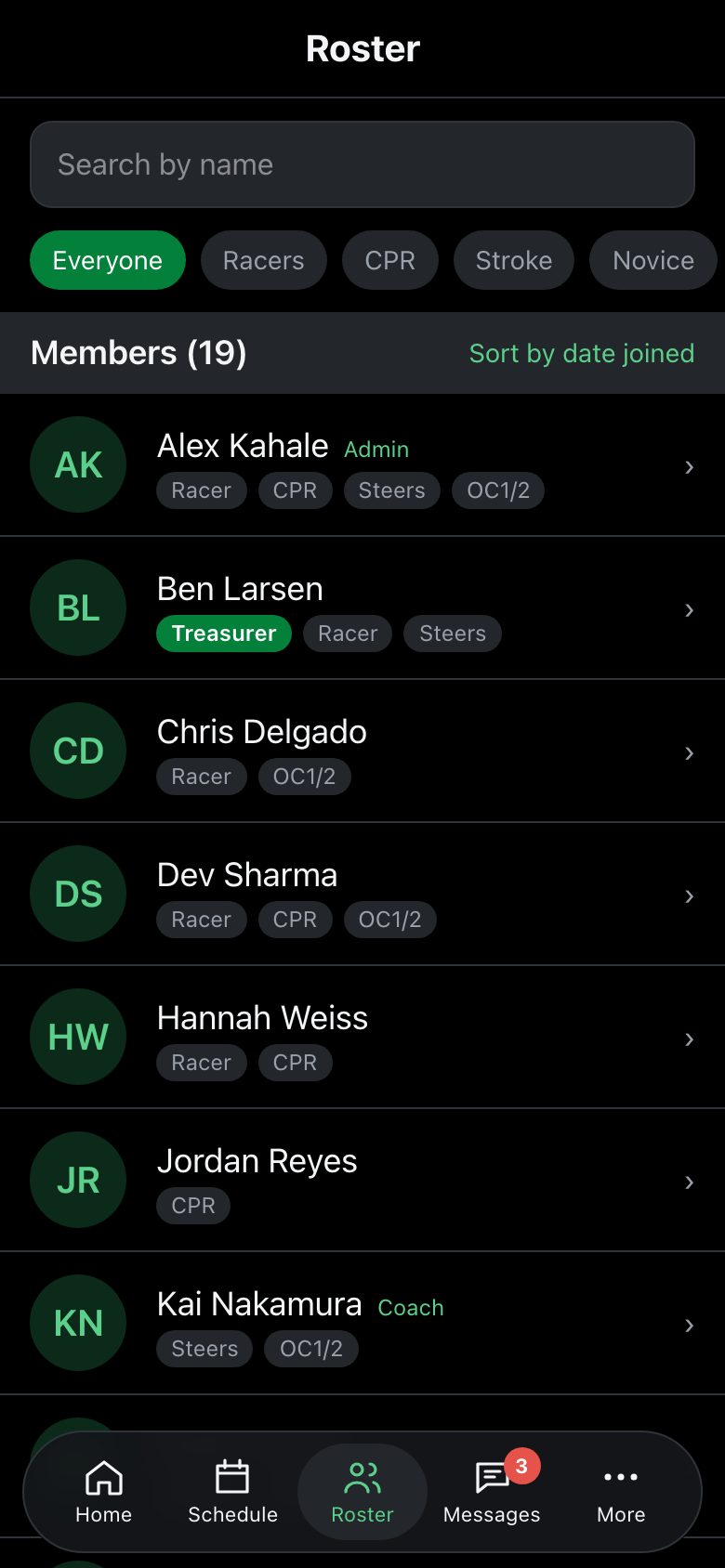
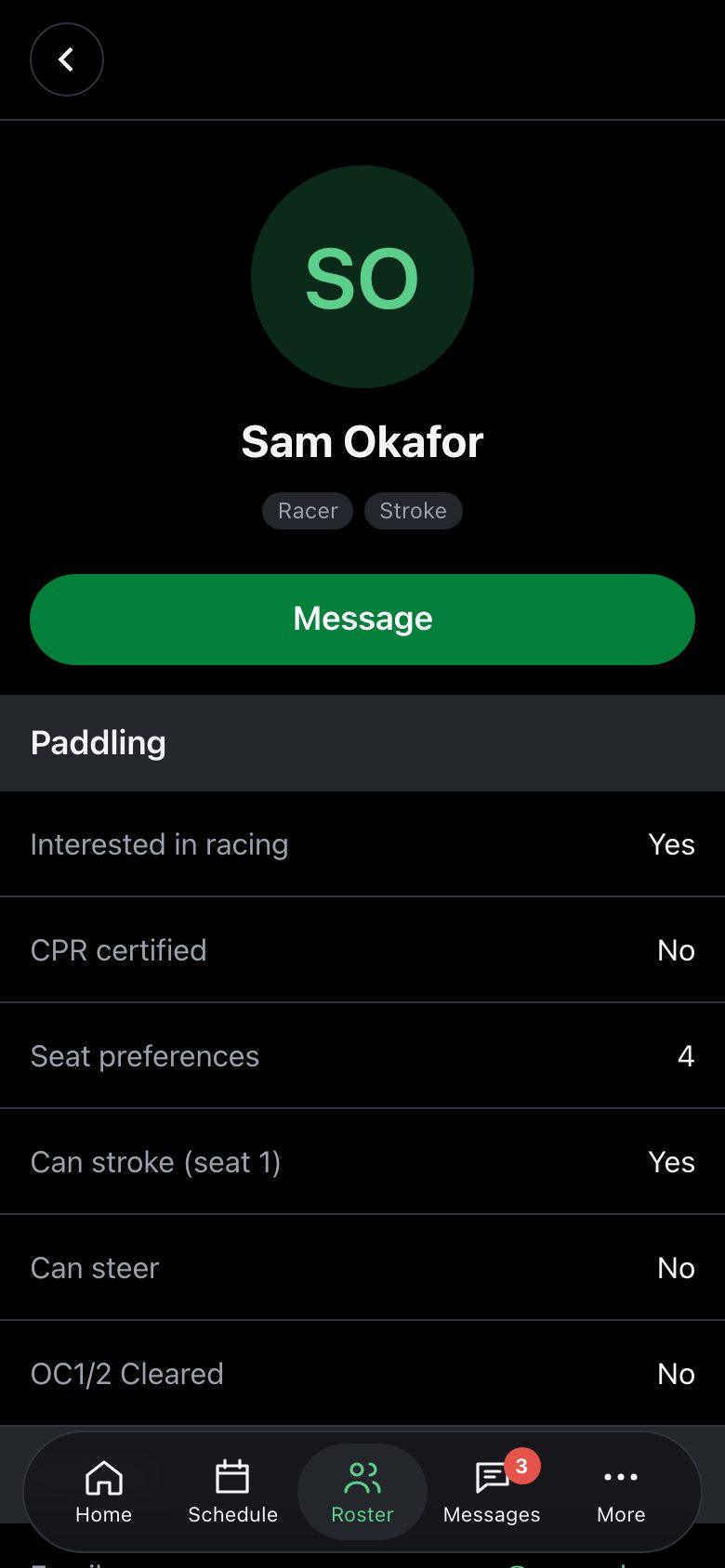
- Search by name, or filter by Racers, CPR, Stroke, Novice, Steers, OC1/2 cleared, and New paddlers.
- Board members have a green tag with their position, so you know who to ask.
- OC1/2 marks paddlers cleared for the small canoes, so you can find an OC2 partner.
- Tap anyone for their paddling details and contact info, or to message them.
Borrow the club OC1 or OC2
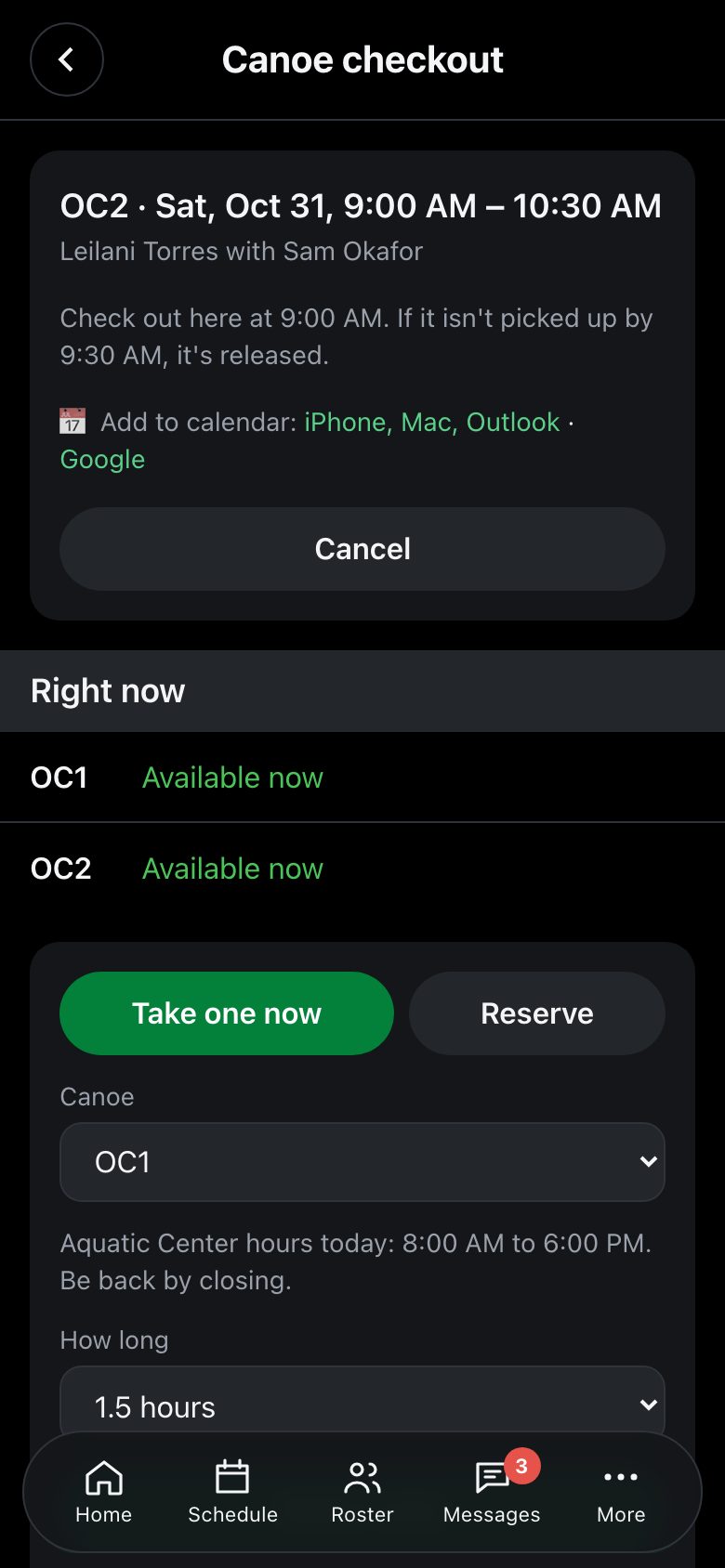
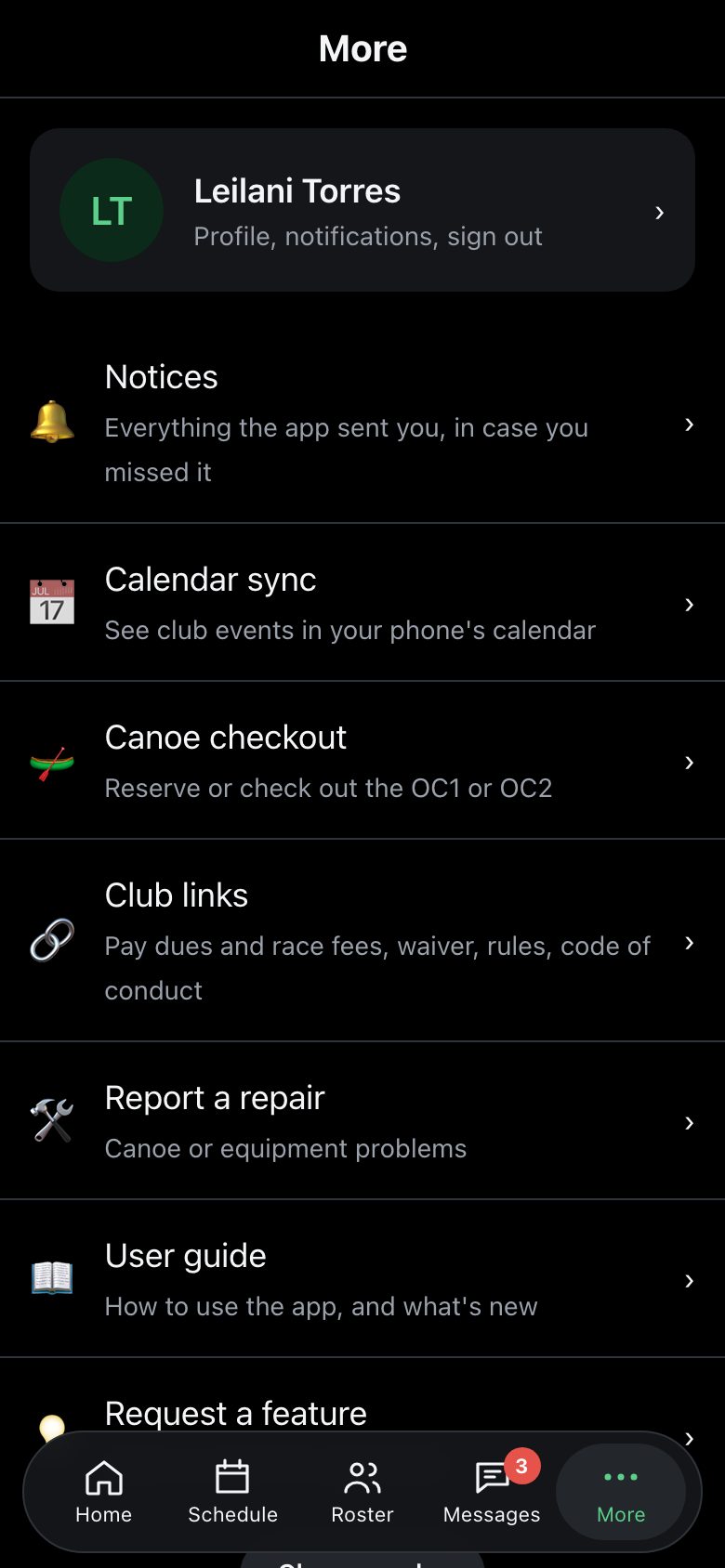
The canoe checkout app is now part of the ʻOhana Kai app, under More > Canoe checkout, with the same sign-in.
Reserve, check out, paddle, check in
- Get cleared first: a coach checks you out on the canoes and marks you OC1/2 Cleared. Until then you can see when the canoes are free.
- Right now shows each canoe: available, reserved, or out, and when it's due back.
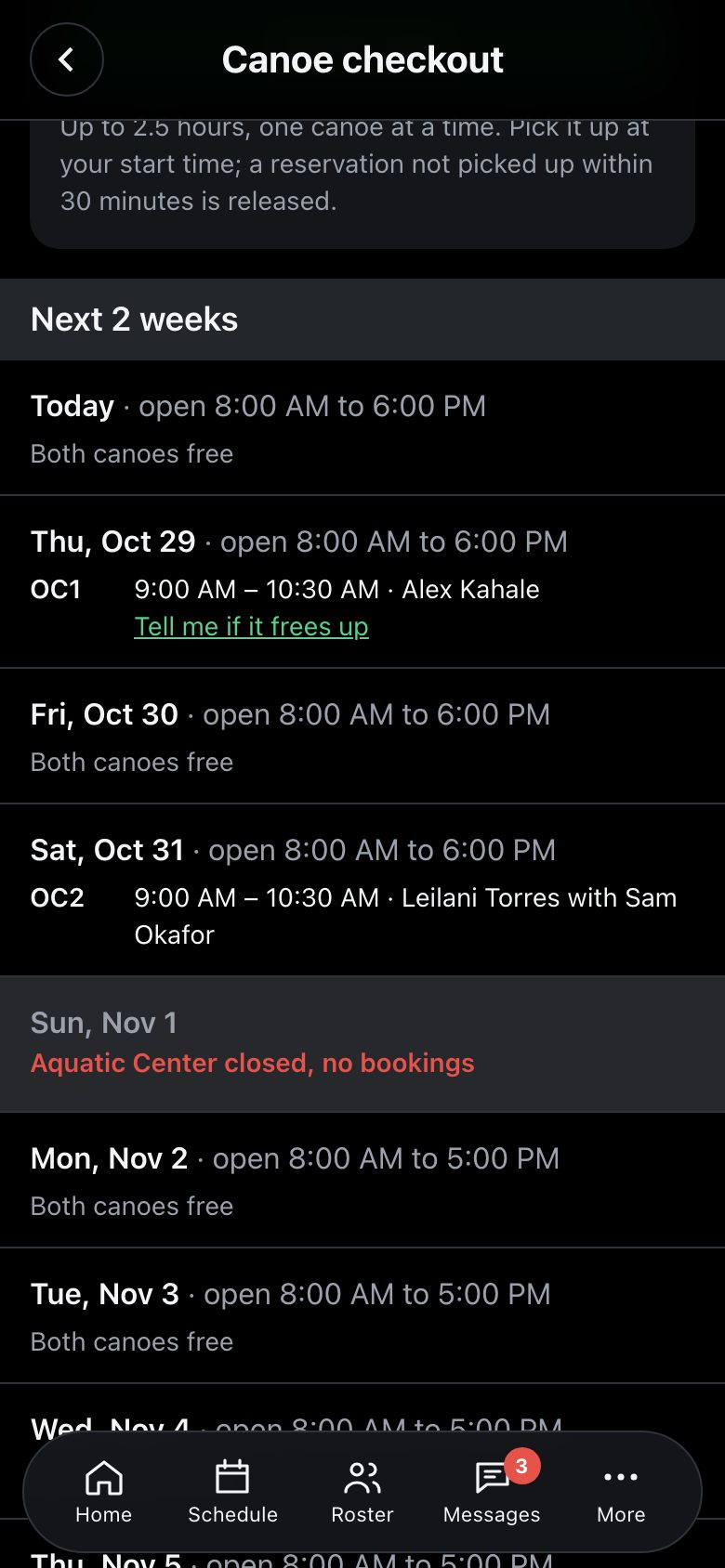
- Take one now, or Reserve a day in the next two weeks. Gray days are when the Aquatic Center is closed.
- You get an email with a calendar file, plus a reminder before you go.
- Check out at your start time: see the lake conditions (weather, wind, air quality), tick the safety checklist, and confirm your emergency contact.
- In the OC2, add a club member as your partner.
- I'm running late adds 15 to 60 minutes. Check in when you're back, with a note, photos, or a repair report.
- Someone else has the time you want? Tap Tell me if it frees up.
The rules
Up to 2.5 hours per outing, one canoe per person at a time (partners count), only during the Aquatic Center's hours, and never on a closed day.
Safety net
If you're not checked in after a short grace period, you, your emergency contact, and the club's alert people get an email. Give your emergency contact an email on My profile.
Use it or release it
A reservation not checked out within 30 minutes of its start is released, so someone else can paddle. Can't make it? Cancel so others can go.
Your details, your way
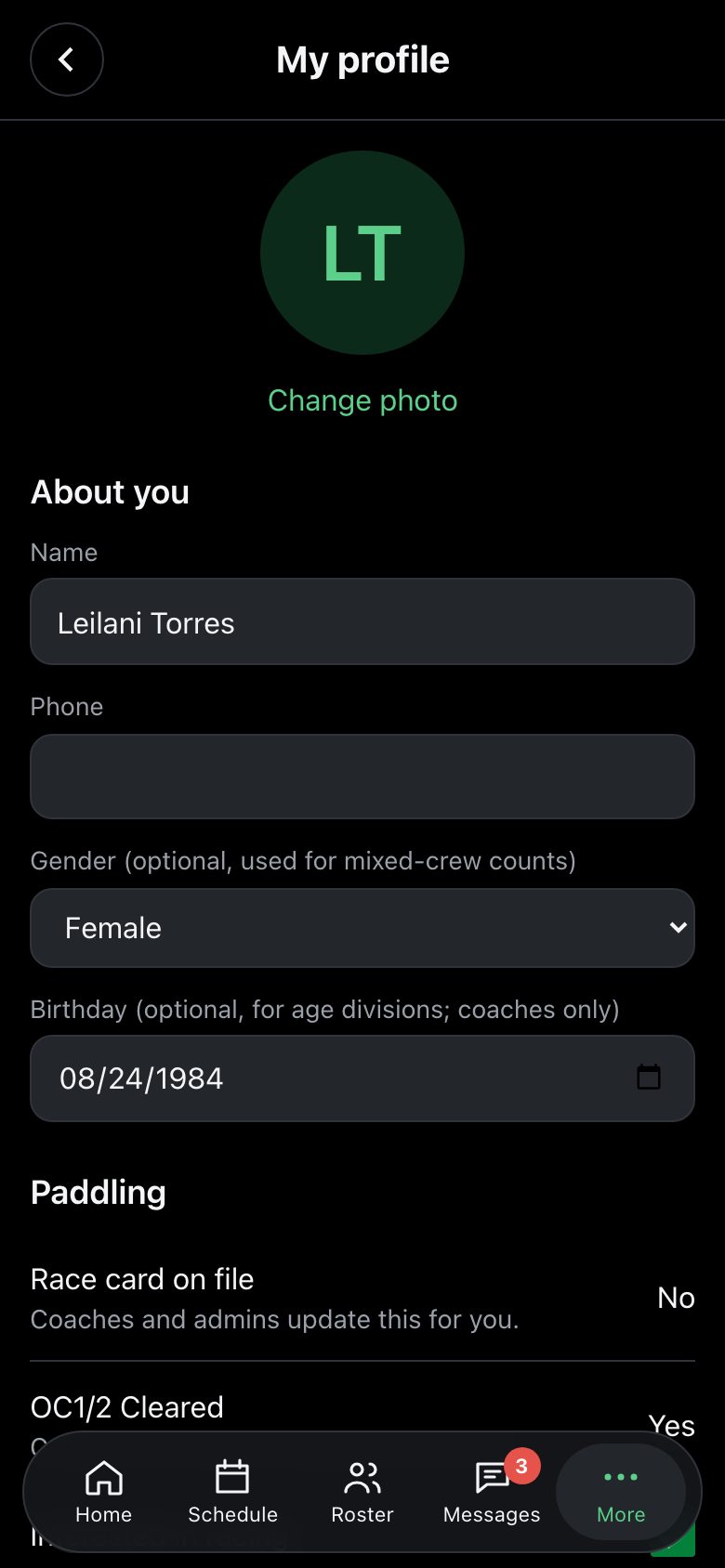
- Keep your photo, phone, emergency contact, and seat preferences up to date.
- Tick Interested in racing, I can steer, or I'm a new paddler, and add CPR certification.
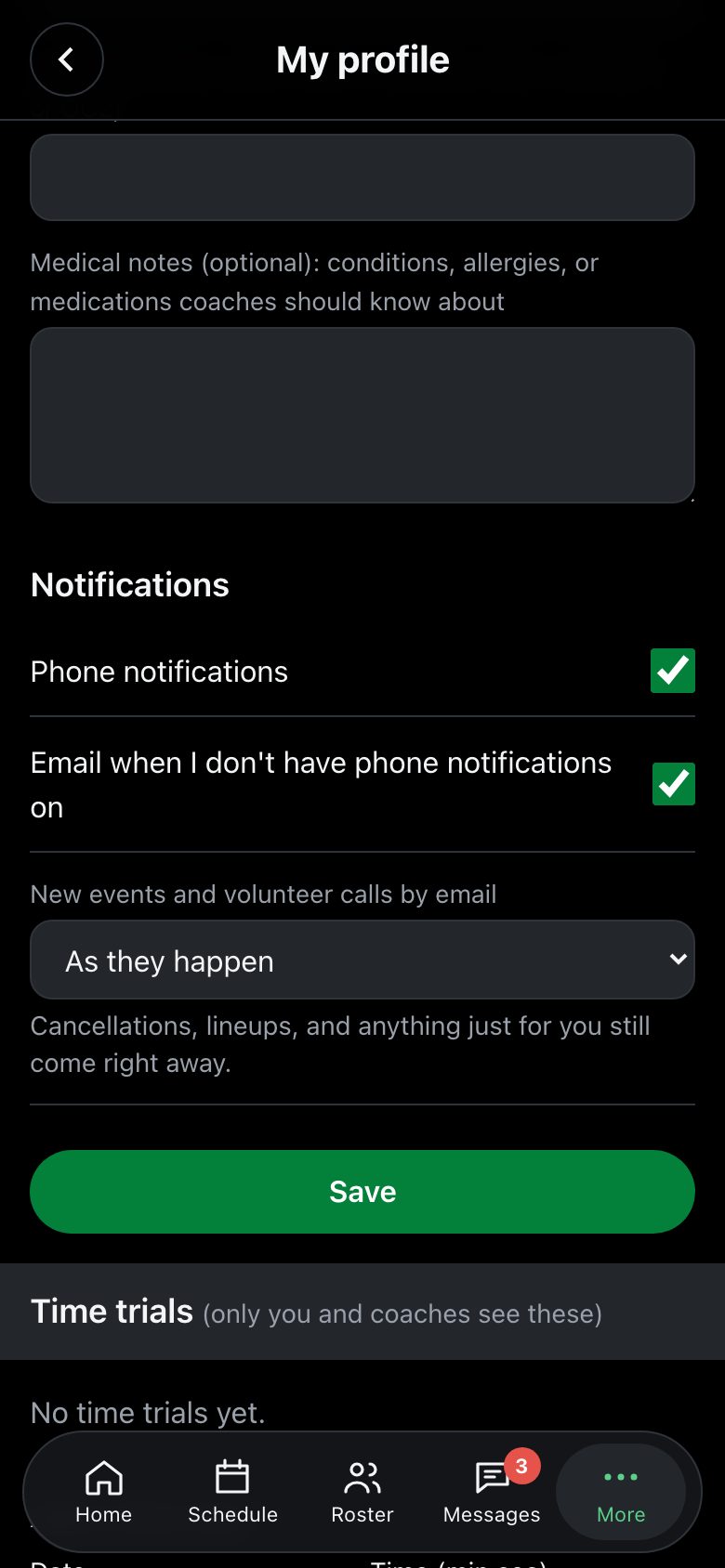
- Choose phone notifications, email, or a daily or weekly summary instead of an email each time.
- Time trials: log your timed pieces. Your best time on each course is marked. Only you and coaches see them.
Handy extras
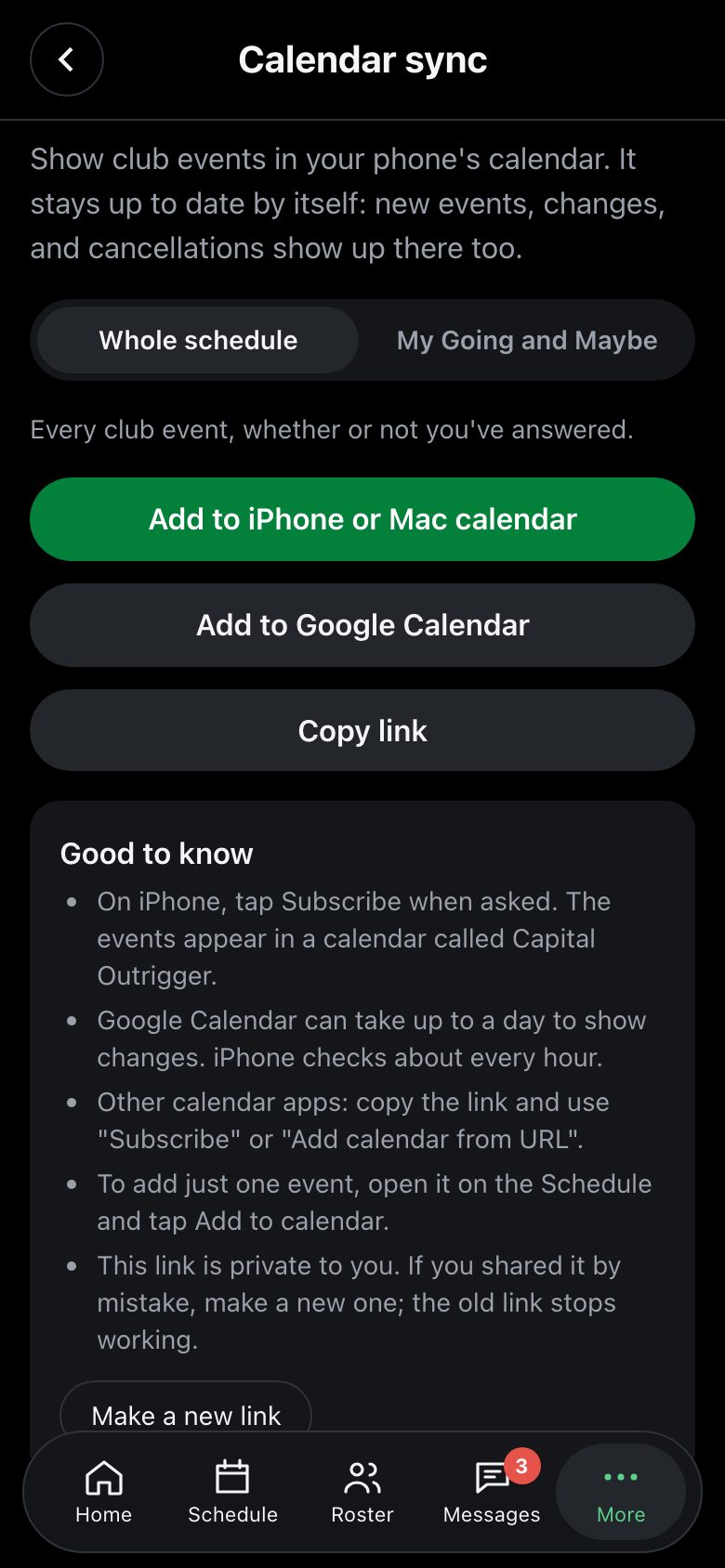
- Calendar sync: put the whole schedule, or just your Going and Maybe events, in your iPhone, Mac, or Google calendar. It keeps itself up to date.
- Notices: a copy of everything the app sent you, in case you missed a notification.
- Club links: pay dues and race fees, sign the waiver, the rule book, and new paddler resources.
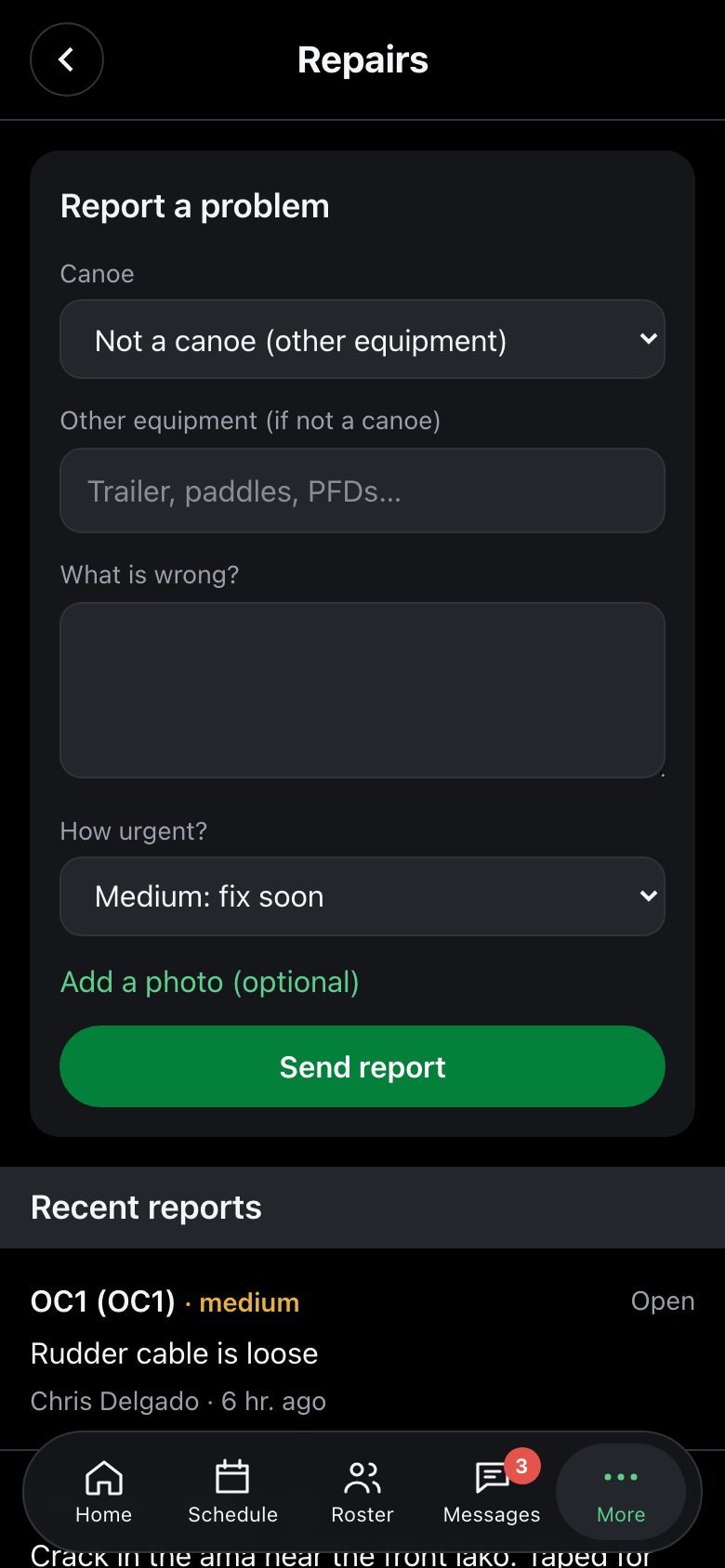
- Report a repair on a canoe or other equipment, with a photo.
- Request a feature and follow its status: Planned, Done, or Not planned.
- Change order puts the More items in the order you like.
Tools for coaches
Coaches get everything members have, plus the tools to plan practices, build crews, and keep the club informed.
Add one event, a repeating series, or a whole season
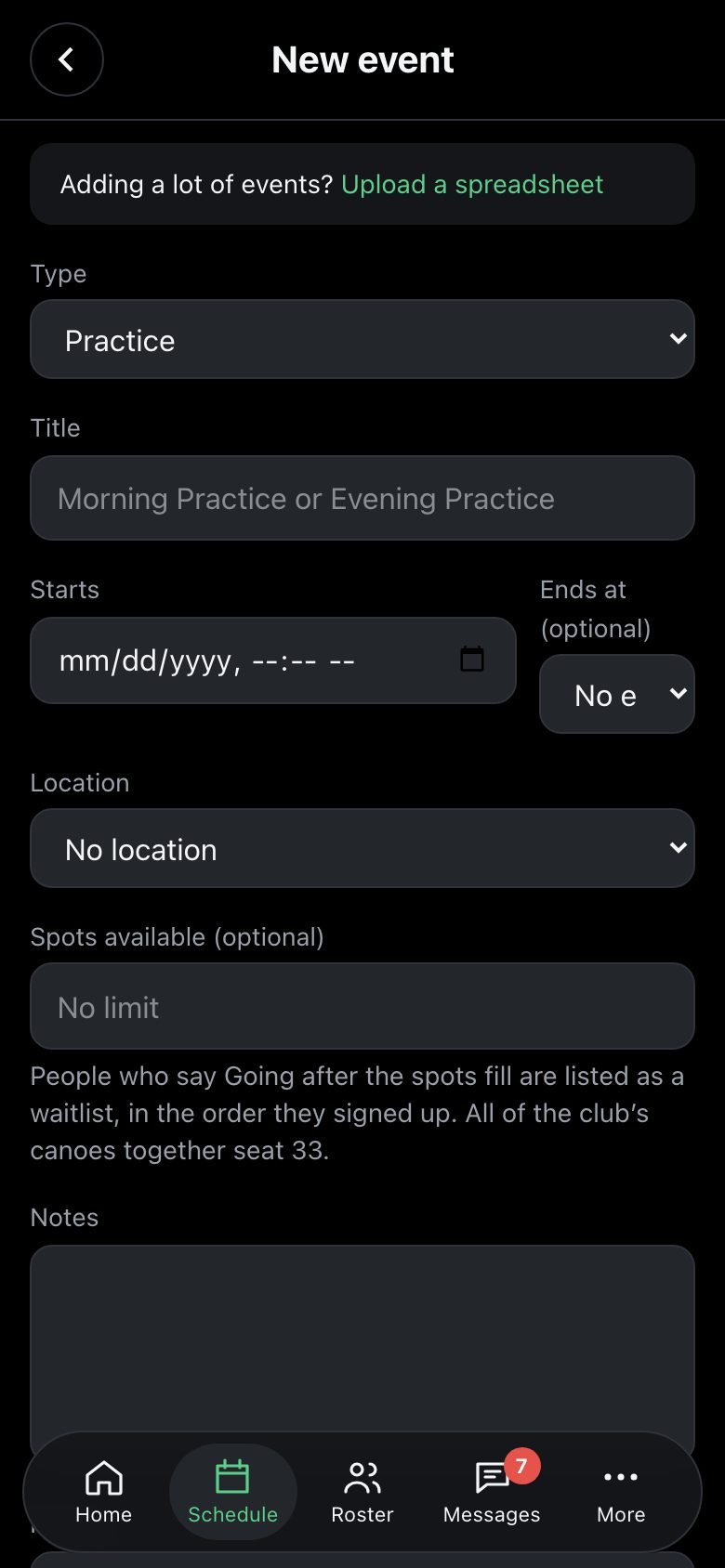
- Tap + on Home or Schedule. Pick the type, time, and a saved location. Add a spot limit, notes, and volunteer jobs.
- Repeat weekly on the days you pick, monthly, or every 3 months, up to a year out.
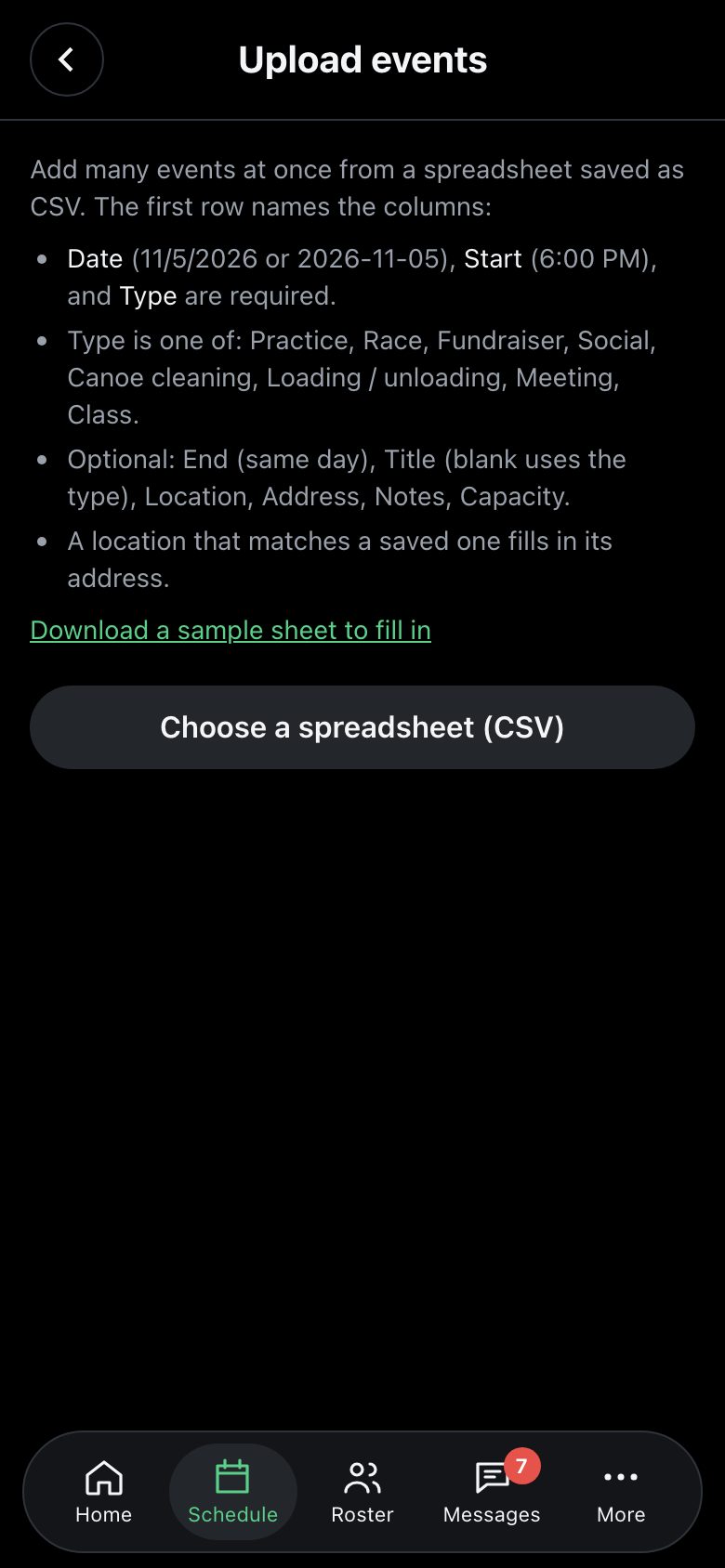
- Upload a spreadsheet (CSV) to add many events at once. You see every row before anything is saved, and one notice tells members about all of them.
- The app warns you when the Aquatic Center lists a day as closed, with a "Schedule anyway" box when you know it's fine.
- Edit, Duplicate, or Cancel an event. Cancelling tells everyone Going or Maybe. Each event keeps a history of changes.
See who's coming, then build the crews
- Availability shows gender and racing age (age on December 31, per NCOCA rules) next to each name.
- Races show a red No race card tag for anyone without one on file.
- Mark attendance with the optional Here boxes after the event starts.
- Lineup builder: add canoes, then drag paddlers by the grip onto seats (works on phones), or tap a seat and a name.
- Auto-fill seats in sign-up order, with a steersperson in the last seat and strokers up front.
- Publish to crew sends each paddler their seat.
Reach the club, and keep paddler records
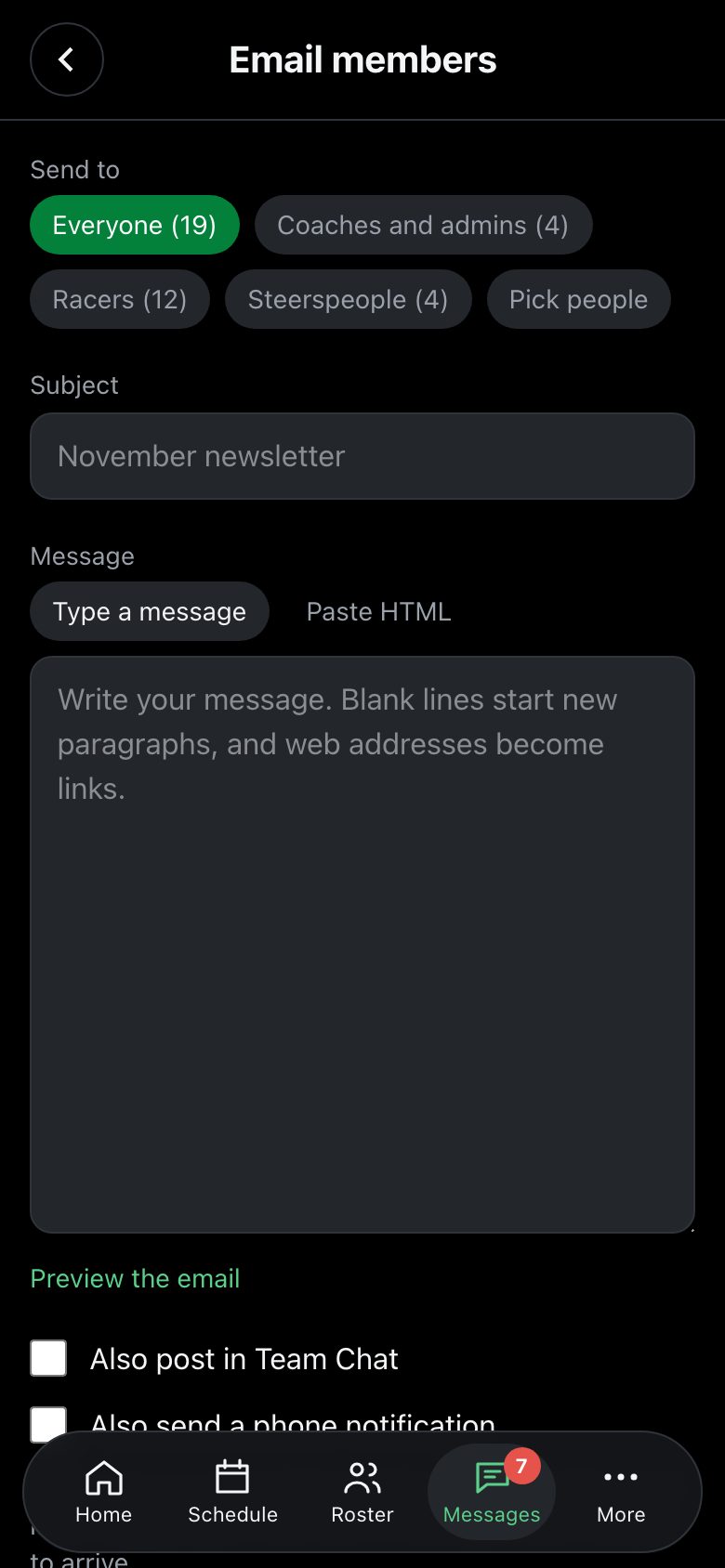
- Email members: newsletters and announcements to everyone, coaches, racers, steerspeople, or people you pick. Preview it, send yourself a test, and optionally post it in Team Chat or send a phone notification too.
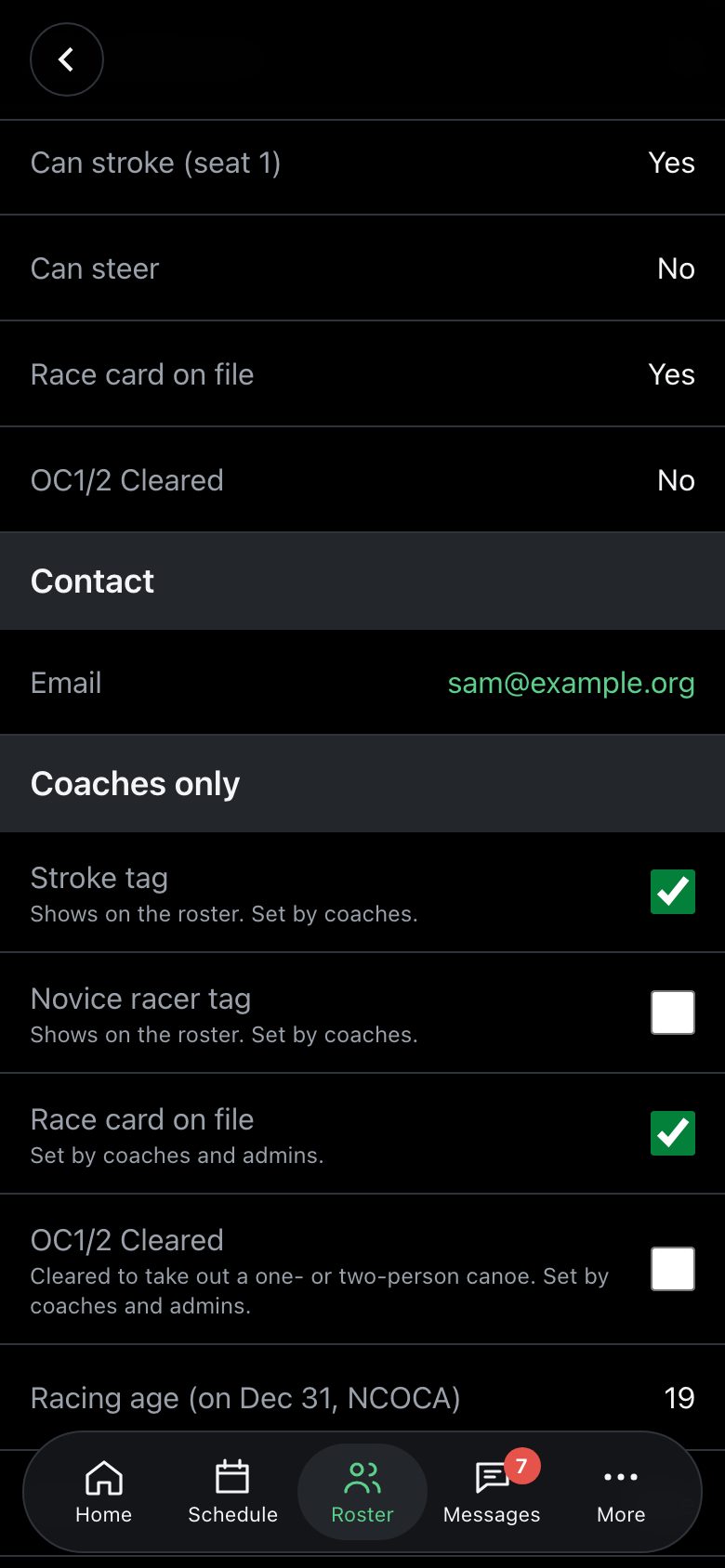
- On any profile, tick Stroke, Novice racer, Race card on file, and OC1/2 Cleared.
- See racing age, gender, time trials, emergency contact, and medical notes.
- Send a 1-tap Invite to the app to anyone who hasn't signed in yet.
Run the small canoes
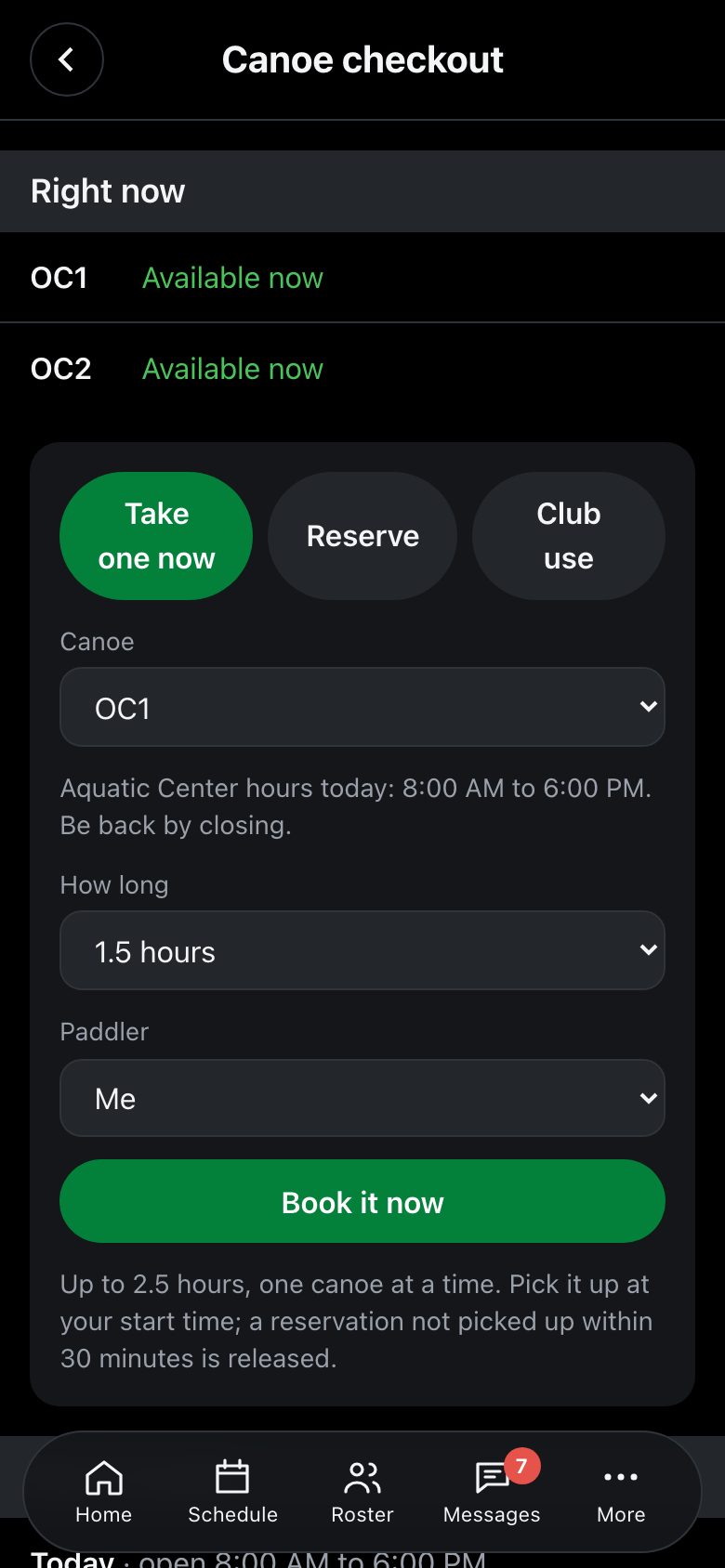
- Book for any cleared paddler, or block a canoe for Club use (any length, weekly for up to 12 weeks).
- Cancel anyone's booking that hasn't gone out.
- For an overdue canoe, Right now shows the paddler's phone and emergency contact.
- See the last 30 days of outings with their check-in notes.
- Update repair reports: Open, In progress, Fixed.
Tools for admins
Admins can do everything coaches can, plus run the membership and the club's settings under More > Admin.
Invites, dues, and the roster
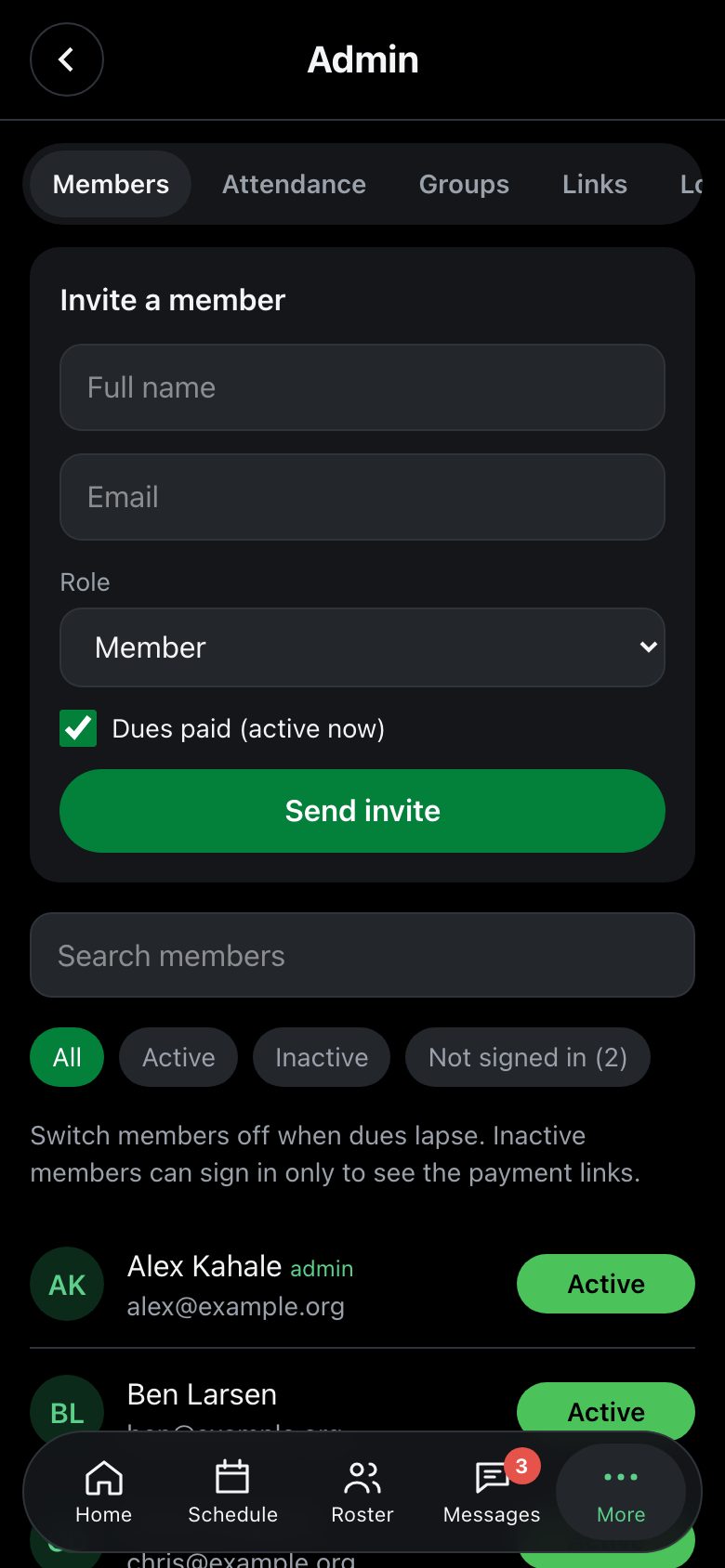
- Invite a member by name and email, and choose Member, Coach, or Admin.
- Turn members Active or Inactive with one tap when dues are paid or lapse. Inactive members see the club's payment links.
- Set a board position or a paid-through date. Start new season marks everyone except admins inactive.
- The Not signed in filter lists who hasn't used the app yet, with an invite button.
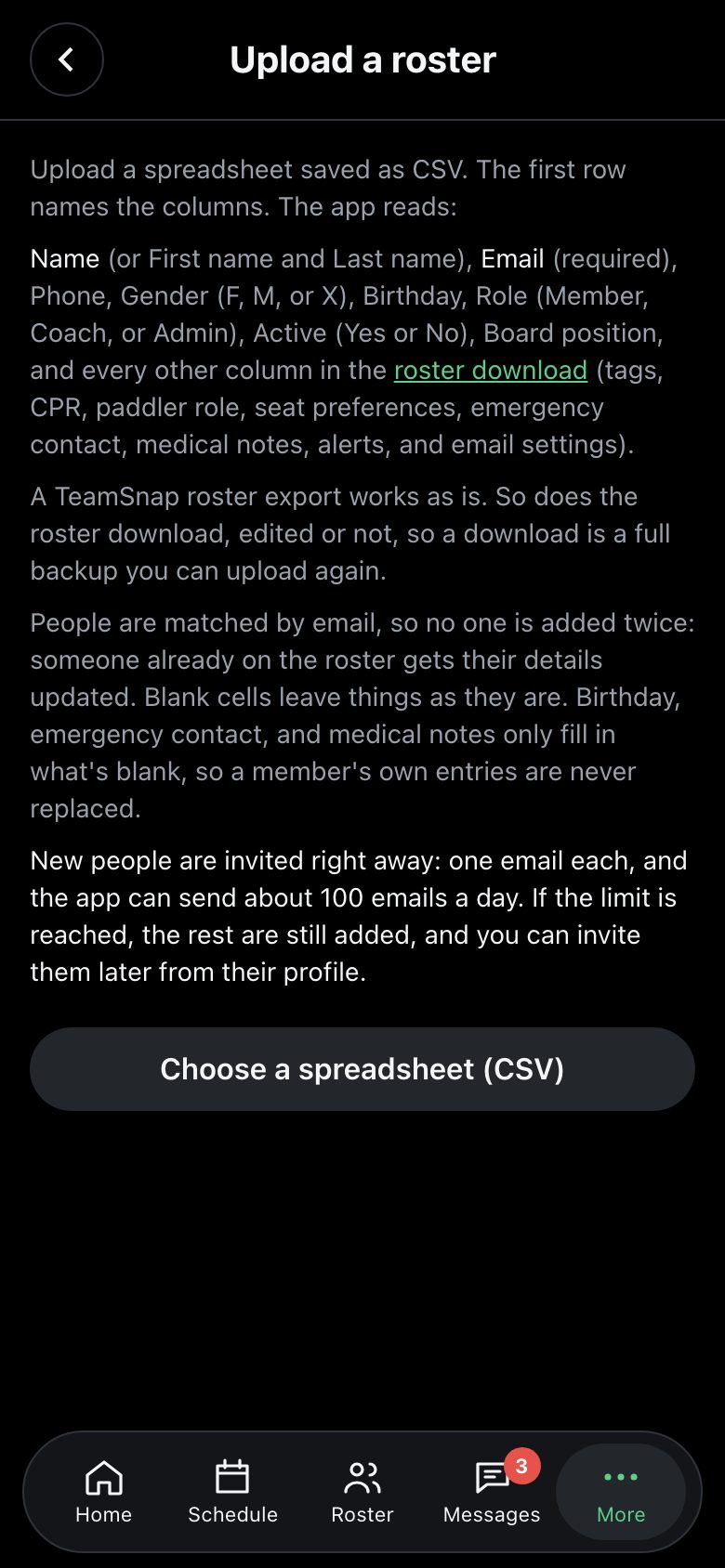
- Download the roster as a spreadsheet, or upload one (including a TeamSnap export). You see who's new and what changes before saving.
The fleet and the lake's calendar
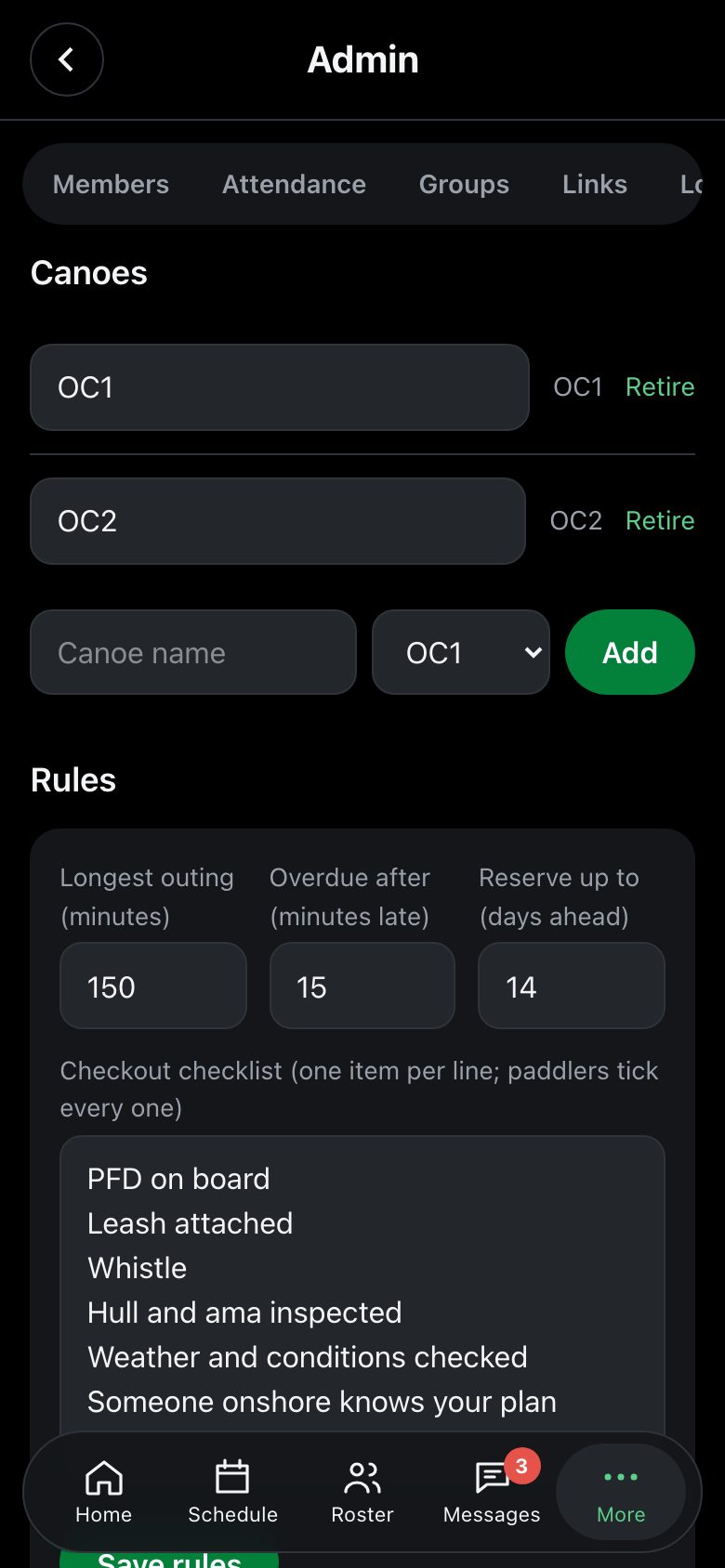
- OC1/OC2: rename, retire, or add canoes. Set the longest outing, the overdue time, how far ahead people can reserve, and the checkout checklist.
- Take a canoe out of service with a note, and choose who gets overdue and repair alerts.
- Usage by month, a booking history download, and a public calendar for the club website.
- OC6s: rename, retire, or add the six-person canoes used in lineups.
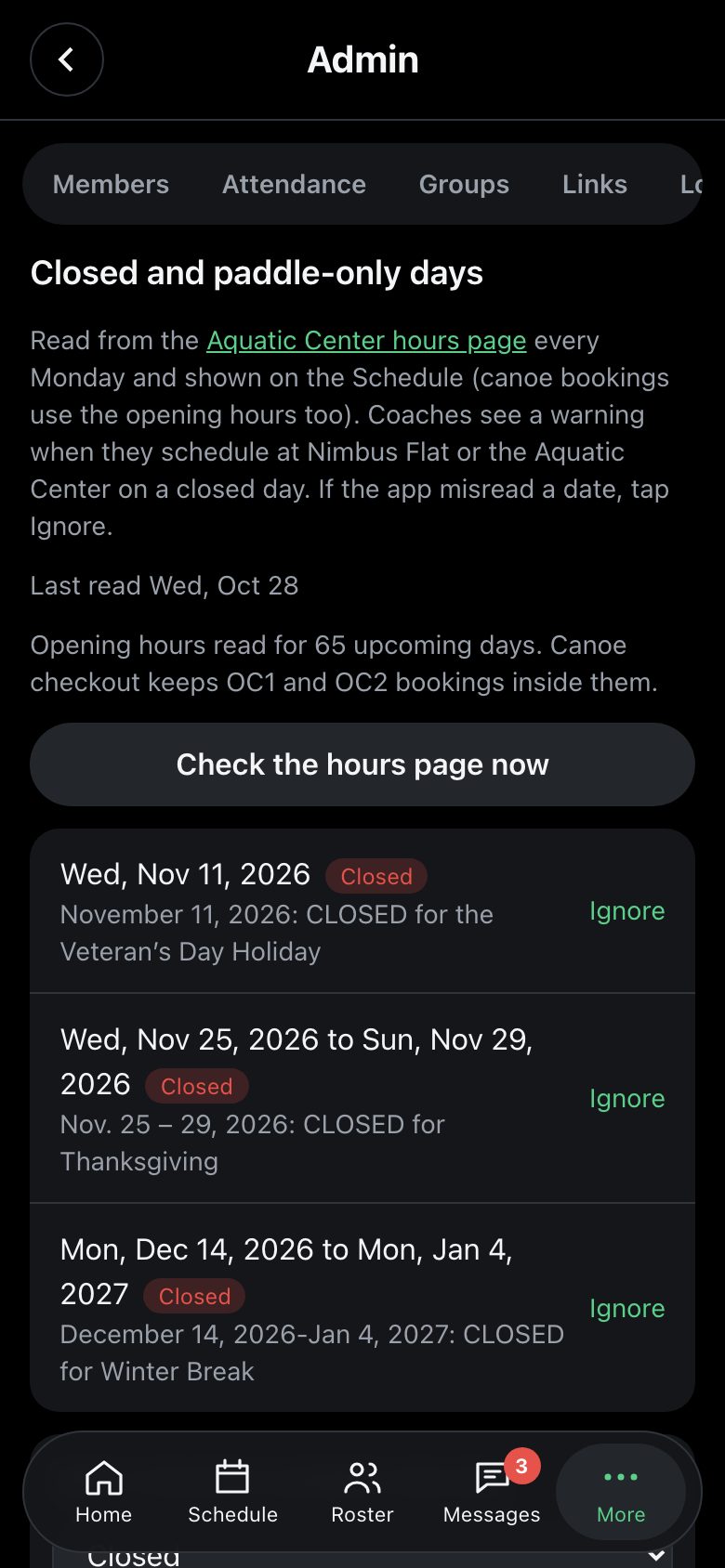
- Aquatic Center: closed and paddle-craft-only days are read from the center's hours page every week. Ignore a misread day or add one. Import Learn to Paddle classes.
Attendance, history, and chat oversight
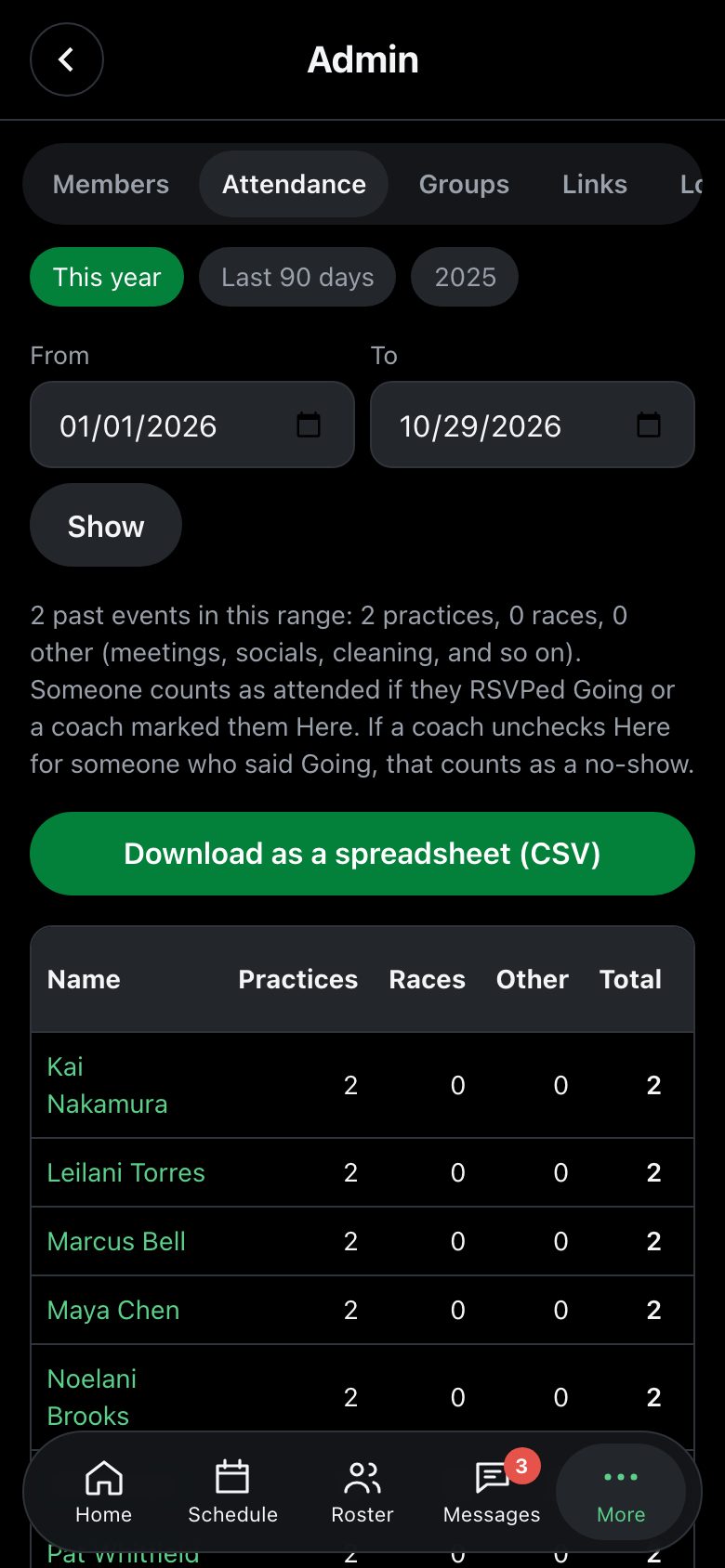
- Attendance: who came to practices, races, and other events over any date range, with a spreadsheet download.
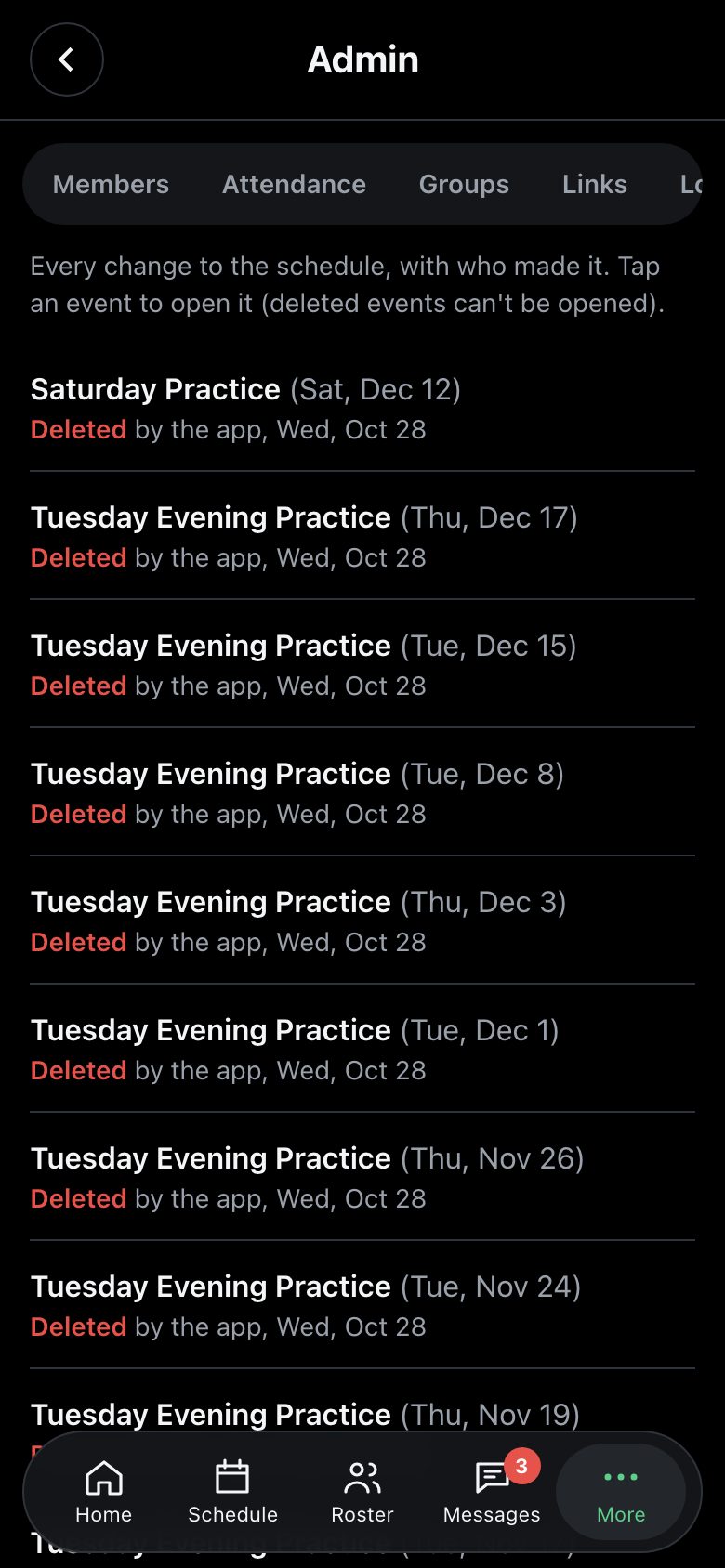
- Event history: every schedule change, including deleted events, and who made it.
- Groups: every group chat and who's in it. Add or remove people; you never see the messages.
- Reports: reported Team Chat and event chat messages, to keep or remove.
- Links and Locations: edit the club links and the saved event places.
Who can do what
| Feature | Members | Coaches | Admins |
|---|---|---|---|
| Schedule, RSVPs, guests, jobs, calendar sync | ✓ | ✓ | ✓ |
| Team Chat, event chats, direct and group chats | ✓ | ✓ | ✓ |
| See your seat in a published lineup | ✓ | ✓ | ✓ |
| Roster, profiles, time trials | ✓ | ✓ | ✓ |
| Reserve and check out the OC1 or OC2 (once cleared) | ✓ | ✓ | ✓ |
| Report a repair, request a feature | ✓ | ✓ | ✓ |
| Add, upload, edit, and cancel events | – | ✓ | ✓ |
| Build and publish lineups, mark attendance | – | ✓ | ✓ |
| Email members, coaching tags, 1-tap invites | – | ✓ | ✓ |
| Book for others, Club use blocks, update repairs | – | ✓ | ✓ |
| Members, dues, access levels, roster upload and download | – | – | ✓ |
| Attendance report, event history, groups, reports | – | – | ✓ |
| Canoe, Aquatic Center, links, and location settings | – | – | ✓ |
| Delete an event | – | – | ✓ |
Questions
Who can see my information?
Gender is visible to members so events can show mixed-crew counts. Your birthday, emergency contact, and medical notes are for you, coaches, and admins only. Direct and group chats stay private: admins can't read them.
Do I need to update the app?
No. It updates itself after each release. Once in a while we may ask you to close the app and open it again to get the newest version. You never need to delete it from your home screen or reinstall it.
Will I get a lot of email?
Chats never send email. If you'd rather get fewer emails, choose a daily or weekly summary on My profile. Cancellations and anything just for you still come right away.
My membership lapsed. What happens?
You'll see a Welcome back page with the club's payment links. Once an admin turns your membership back on, everything returns.
What time zone does the app use?
Pacific time, everywhere.
Something isn't working, or I have an idea.
Use More > Request a feature. It goes straight to the people who build the app, and you can follow its status.
Want every detail? The user guide explains every screen, and the version history lists what's new.
See you on the water
Open the app, add it to your home screen, and sign in with your email. Your next practice is waiting.
Open the app